It's Sunday evening. You open a spreadsheet to figure out which students still have lessons left before the week starts. You cross-check it against last week's schedule, try to remember who paid for what, and realize you're not sure about at least two students. Again.
This is the moment edio's lesson balance system is built for — so you never have to do that Sunday check again.
What Is the Lesson Balance System?
The lesson balance system is a built-in feature in edio that lets online language schools track how many prepaid lessons each student has remaining. Instead of managing lesson credits externally, everything lives inside the platform — per class, per student, with a full transaction history.
Once activated in school settings, a Balances tab appears inside every online class. Student balances start at zero and can be topped up manually by you.
If you run a school on prepaid lesson packages, the lesson balance system removes a whole category of administrative work:
No more external spreadsheets for tracking credits
No forgotten deductions after lessons
No disputes — students can verify their own history
Faster payments — you can see who's running low and prompt a renewal
It also scales cleanly. Whether you have 5 students or 500, it works the same way — per class, per student, with a full audit trail.
How to Activate It
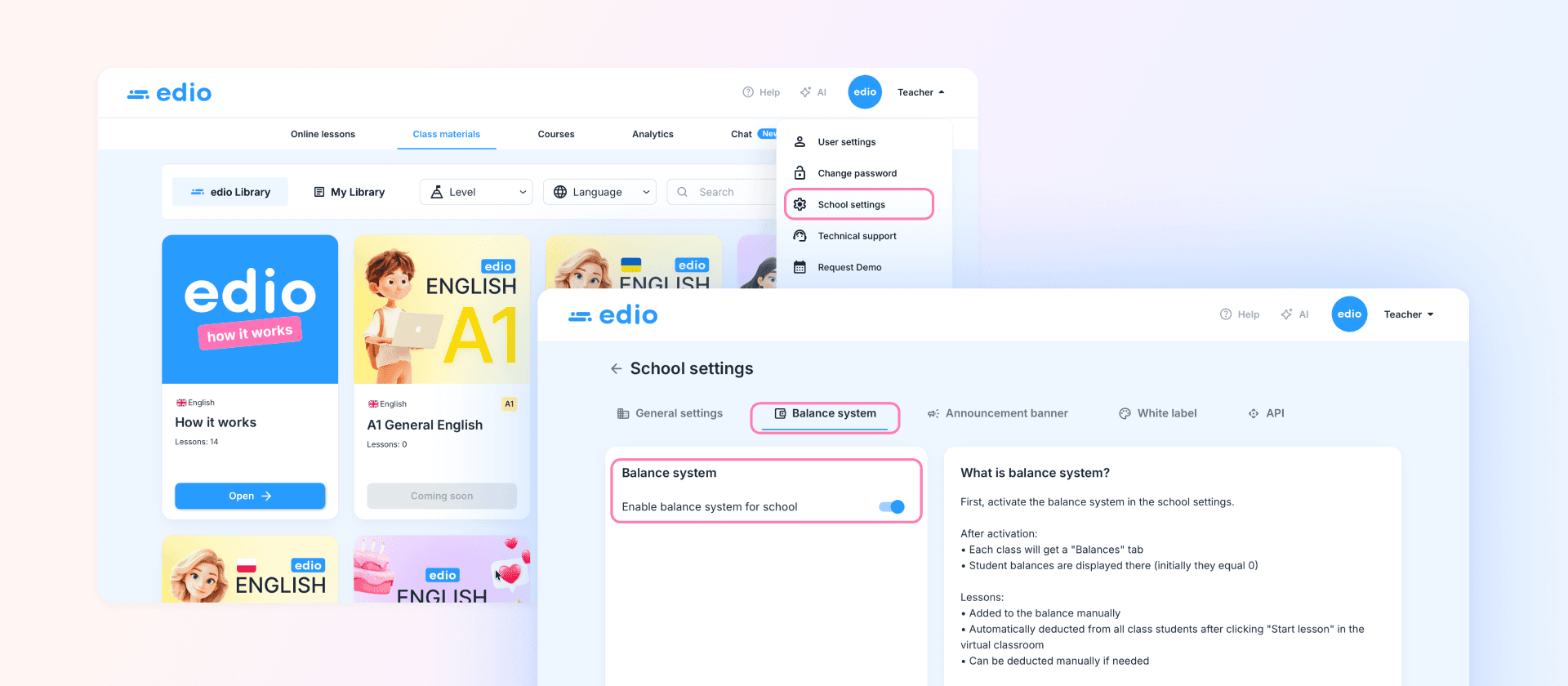
To turn on the balance system, go to School Settings → Balance System and toggle it on. That's it. From that moment:
Every class gets a Balances tab
All students start with a balance of 0 lessons
Lessons can be added manually and deducted automatically or manually
Adding Lesson Credits to a Student
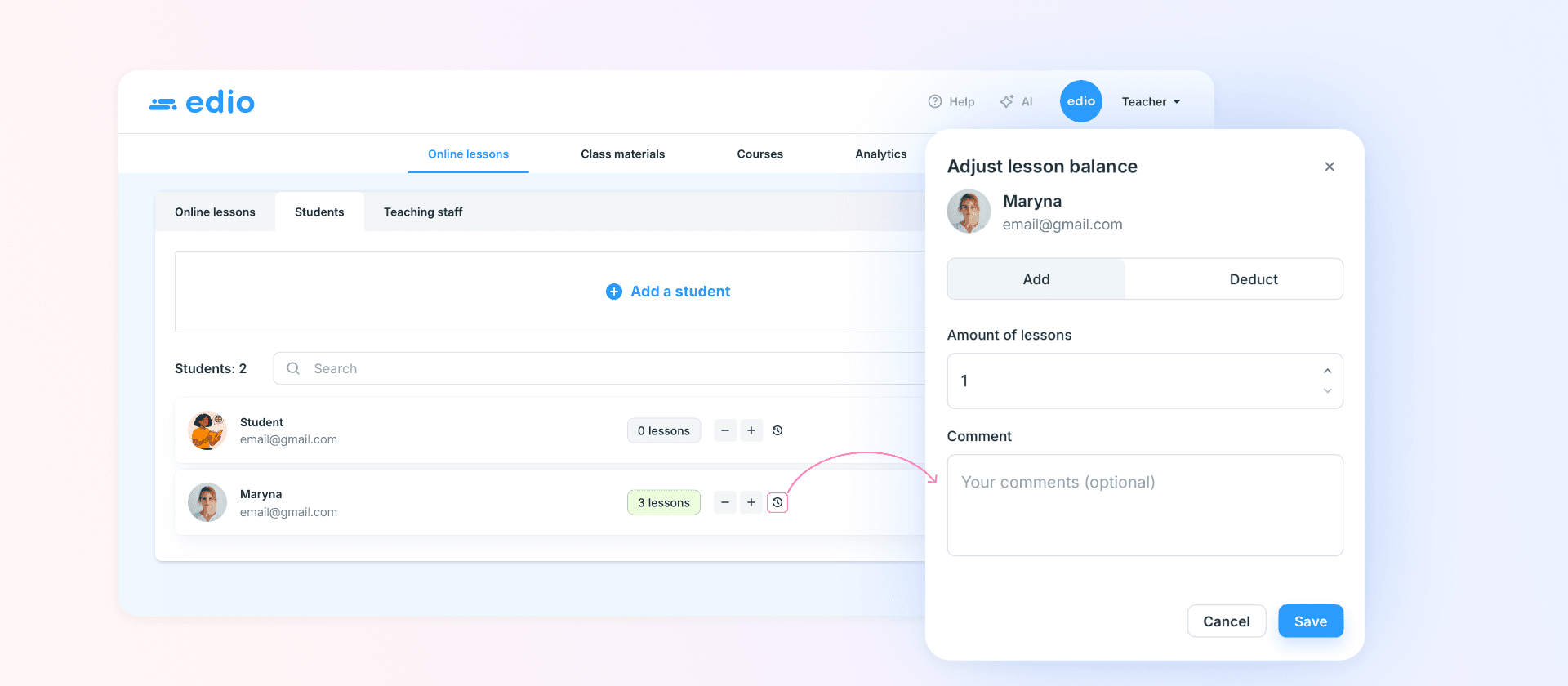
Once the balance system is active, you can top up a student's lesson balance directly from the Balances tab inside any class.
Clicking the + button next to a student opens the Adjust Lesson Balance modal. From there:
Choose Add or Deduct
Enter the number of lessons (e.g. +8 for a monthly package)
Add an optional comment (e.g. "February payment", "Bonus lessons")
Click Save
The balance updates instantly and the transaction is logged in the student's history.
Automatic Lesson Deductions
This is where the system saves real time. When the teacher clicks Start Lesson inside the virtual classroom, edio automatically deducts one lesson from every student's balance in that class.
No manual work. No forgetting. The deduction happens the moment the lesson begins.
If needed, lessons can also be deducted manually — for example, when a student missed a session that still counts against their package, with a comment like "Didn't attend."
Want to see it in action? Book a demo →
Balance History: Full Transparency
Every balance change is recorded. You can open the Balance History for any student and see a full log:
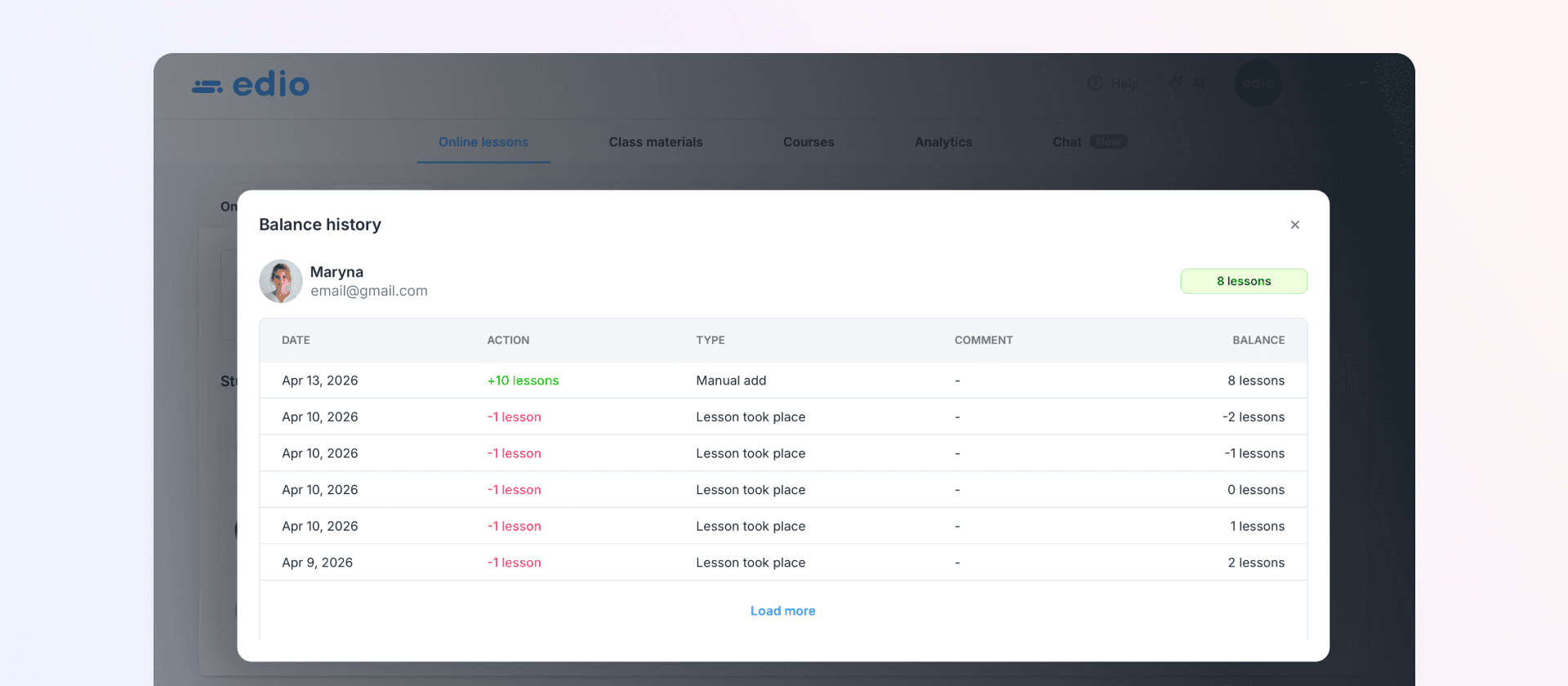
The history can be filtered by month and shows every addition, deduction, and the resulting balance after each transaction. You can also click through to the specific session that triggered an automatic deduction.
What Students See
Students aren't left in the dark. From their My Learning Space dashboard, each student can see their current lesson balance at a glance — displayed prominently next to their class list.
They can also open their own Balance History to view the full transaction log: dates, actions, types, and running balance.
This matters more than it might seem. When students can check their own balance at any time, they stop messaging you to ask. And when a renewal is coming up, they already know — which makes the conversation easier for everyone. Students stop asking. They just check.
Balances in the Students List View
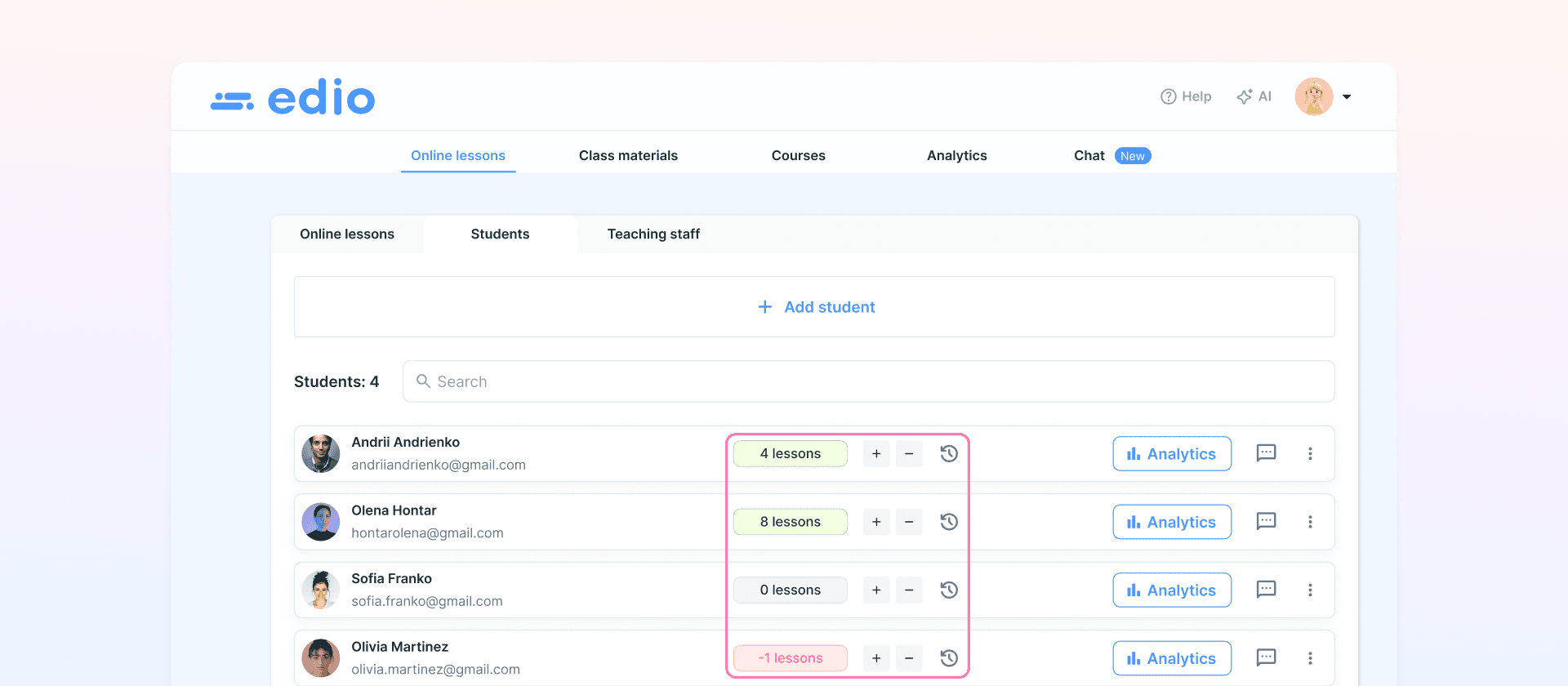
The balance system also surfaces inside the Class Materials → Students tab. Every student in a class shows their current balance inline — green for positive, pink/red for negative — with quick + and − buttons for fast adjustments without navigating away.
This makes it easy to do a quick end-of-month top-up across all students from a single screen.
Frequently Asked Questions
Can balances go negative?
Yes — if a lesson is deducted and the student's balance is already at zero, it will show as −1. This makes it easy to spot who needs to top up, without blocking the lesson from happening.
Can teachers edit balances, or only admins?
Balance adjustments are made by the school owner or admin. Teachers can see balances but cannot add or deduct lessons manually.
How does it work for group classes?
When a lesson starts in a group class, one lesson is automatically deducted from every student's balance in that class simultaneously.
What about trial lessons or cancellations?
You can deduct lessons manually with a comment — for example "Trial lesson" or "Cancelled, counted." The comment shows up in the student's history so everything stays transparent.
Getting Started
The lesson balance system is available to all edio schools. To activate it:
Go to School Settings
Open the Balance System tab
Toggle the feature on
From there, the Balances tab will appear in your classes automatically. Start by adding lesson credits for your students and let edio handle the deductions as lessons happen.
Ready to Stop Tracking Lessons in Spreadsheets?
edio's lesson balance system is already built in — no extra tools, no integrations, no setup beyond a single toggle.
Set up your school in minutes and see the balance system in action with your real students.
Already using edio? Turn on the balance system in School Settings → Balance System and it's live instantly.