You've made the decision to take your language school online. Maybe you're already teaching and want to scale. Maybe you're starting from scratch. Either way, the biggest question is the same: where do I actually begin?
This guide walks you through every step — from setting up your school profile to running your first interactive lesson — using edio, an interactive platform built specifically for online language schools and tutors.
By the end, you'll have a fully functioning online school ready for real students.
What You Need Before Your First Lesson
Launching an online language school doesn't require months of technical setup. With the right platform, you can go from registration to your first lesson in a matter of hours.
Here's what you'll need:
A teaching platform with a built-in virtual classroom
Your lesson materials — either ready-made or created by you
At least one student to teach
A video call link (Zoom or Google Meet) for the audio/video part of the lesson
Everything else — attendance tracking, student progress, lesson materials, communication — can live inside edio from day one.
Step 1: Set Up Your School Profile
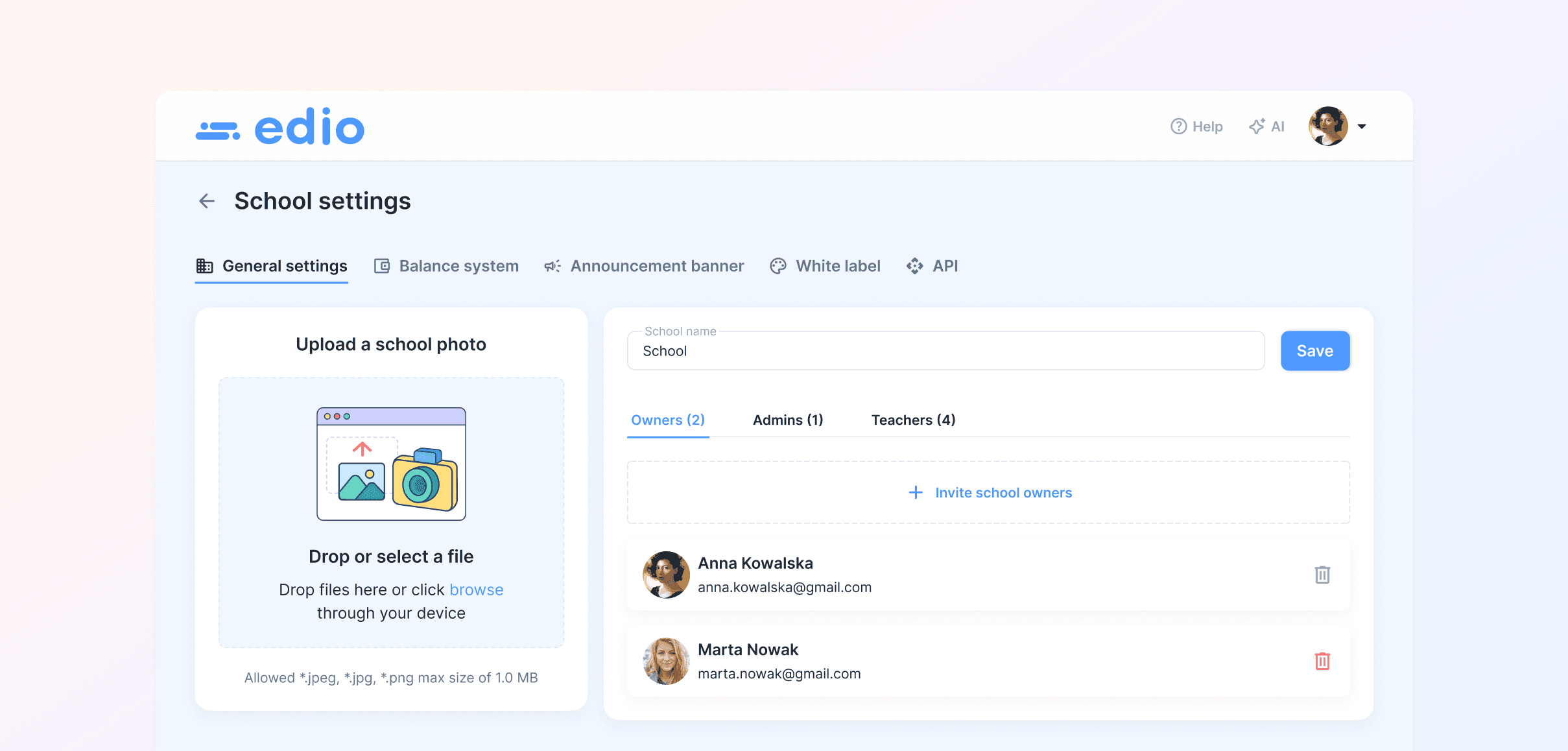
Once you create your edio account, the first thing to do is give your school an identity. Go to School settings from the top right menu and add:
Your school name — this is what students will see when they receive their invitation
A school photo — optional, but it makes your platform look more professional from day one
If you have teachers on your team, this is also where you invite them. Go to the Teachers tab inside School settings and send invitations by email. Each teacher gets their own login and access to their assigned classes.
If you're a solo tutor teaching all lessons yourself, you can skip the teacher invitation step entirely and move straight to adding students.
Step 2: Add Your First Students
Before you can create a class, you need students on the platform. Adding a student in edio takes about 30 seconds.
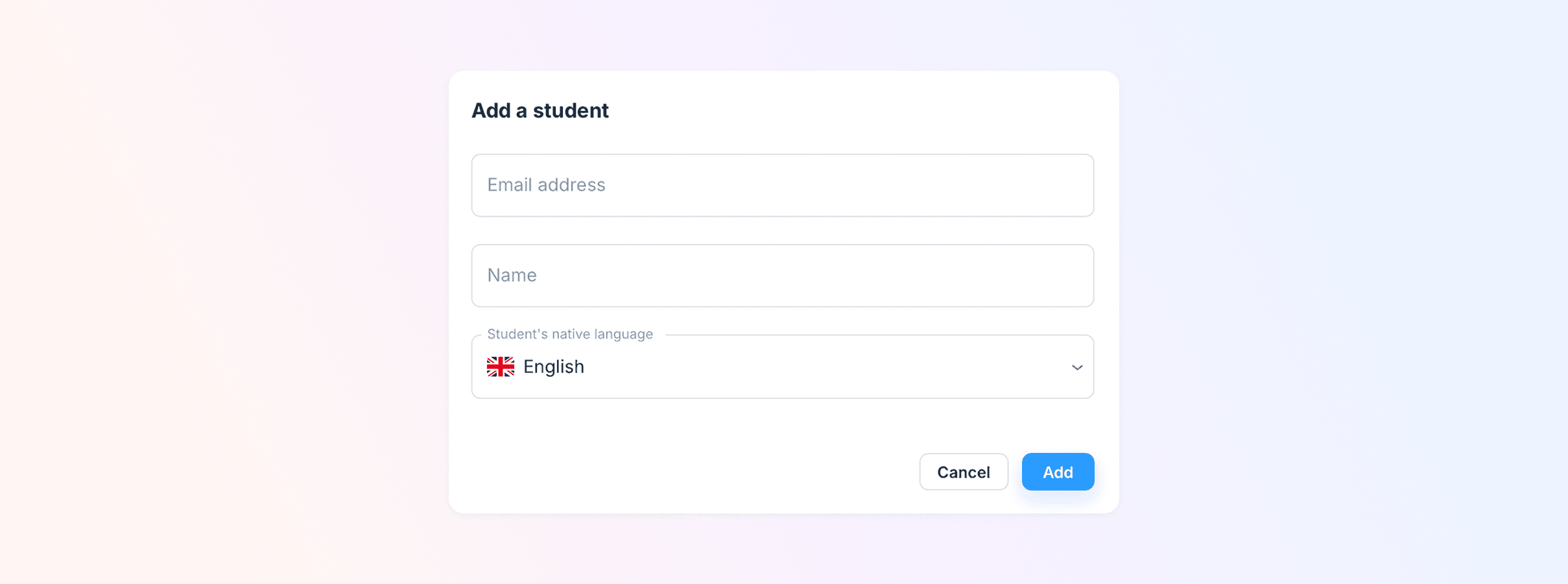
Go to Online lessons → Students → Add a student and fill in:
Email address
Name
Native language
As soon as you click Add, the student receives an automatic invitation email with their login and a temporary password. They click the link, set up their profile, and immediately see your school and their assigned classes.
During a free trial, you can add up to 5 students — enough to run real lessons and see how the platform works with your actual school.
Step 3: Create Your First Virtual Class
A virtual class in edio is the ongoing space where you and your students meet for lessons. Think of it as a permanent room — it holds your lesson materials, student list, attendance history, and analytics, all in one place.
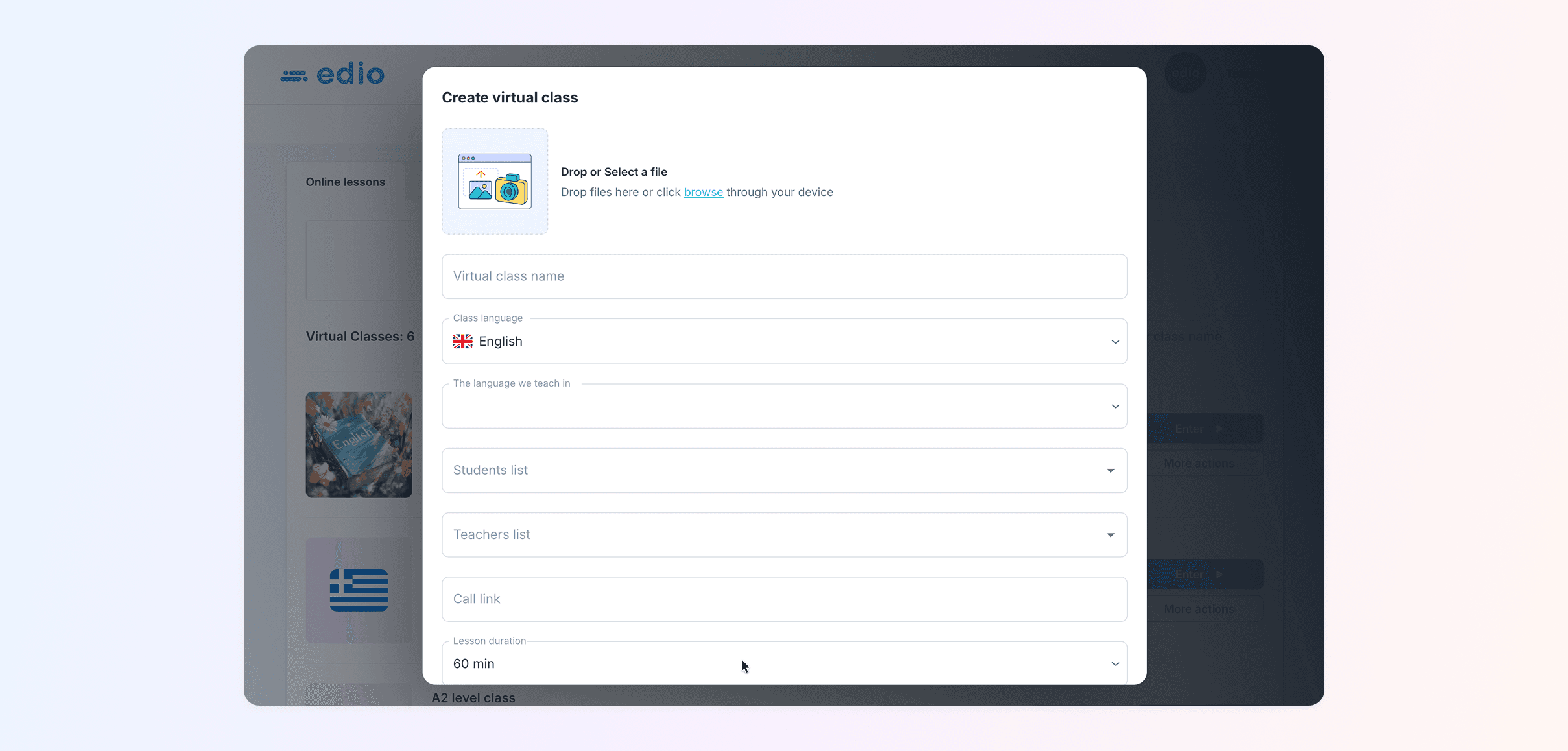
Go to Online lessons → Create virtual class and fill in:
Class name — for example, "English B1 — Evening group"
Class language — the language being taught
Teaching language — the language of instruction
Students — select from the students you've already added
Teacher — assign yourself or one of your invited teachers
Call link — paste your Zoom or Google Meet link here
Lesson duration — default is 60 minutes
That's it. Your class is ready.
Step 4: Add Lesson Materials
This is where edio saves language teachers a significant amount of time. You have two options: use ready-made lessons from the library, or create your own.
Option A: Use the edio lesson library
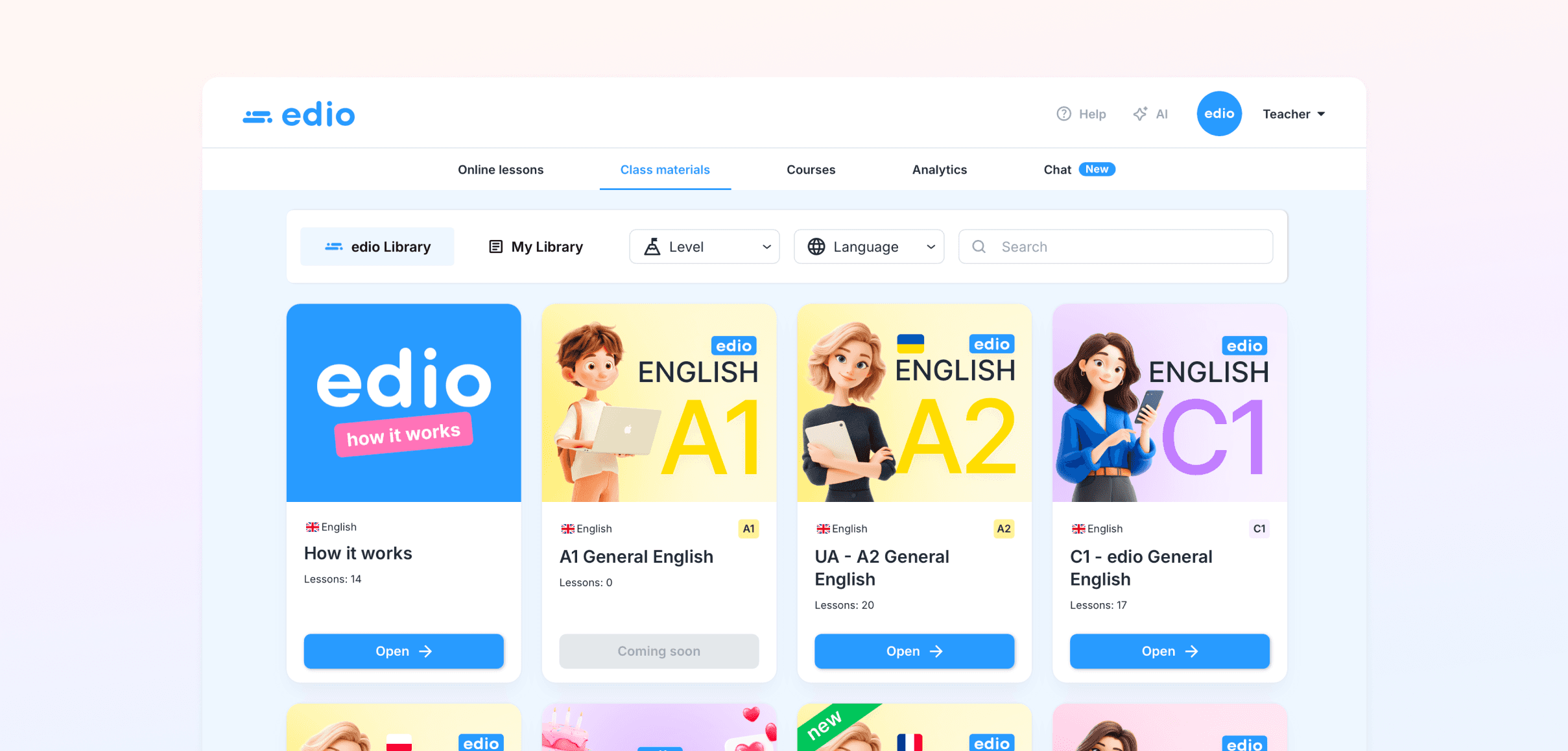
If you teach English, edio comes with a library of 50+ ready-made lessons for levels A1–B2, covering topics like daily routines, grammar in context, business English, travel, and more. Each lesson is fully interactive — exercises are built in, auto-checked, and ready to use in a live class.
Go to Class materials → edio Library, browse by level or topic, and add lessons directly to your library. No preparation needed.
Option B: Create your own materials
If you teach a language other than English, or want to build your own curriculum, edio's lesson builder gives you 25+ exercise types to work with:
Auto-checked exercises — quiz, matching, fill in the blank, drag and drop, word choice, true or false
Asynchronous tasks — teacher-reviewed writing and audio assignments
Multimedia — video, audio, PDF, images, notes, and integrations with Miro, Quizlet, Wordwall, and Genially
You can also use the built-in AI assistant to generate exercises faster — describe what you need, and it builds the exercise for you.
Important: Set teacher access before the lesson
If your teachers will be delivering the lessons, make sure they have access to the materials beforehand. Go to More actions → User access on any material and set the access level for each teacher: View (can use in lessons) or Edit (can also modify the material).
edio supports 17 languages, so whether you teach English, Spanish, French, Polish, or Ukrainian, you can build fully interactive lessons in any of them.
Step 5: Run Your First Interactive Online Lesson
This is where online language teaching in edio feels different from a regular video call.
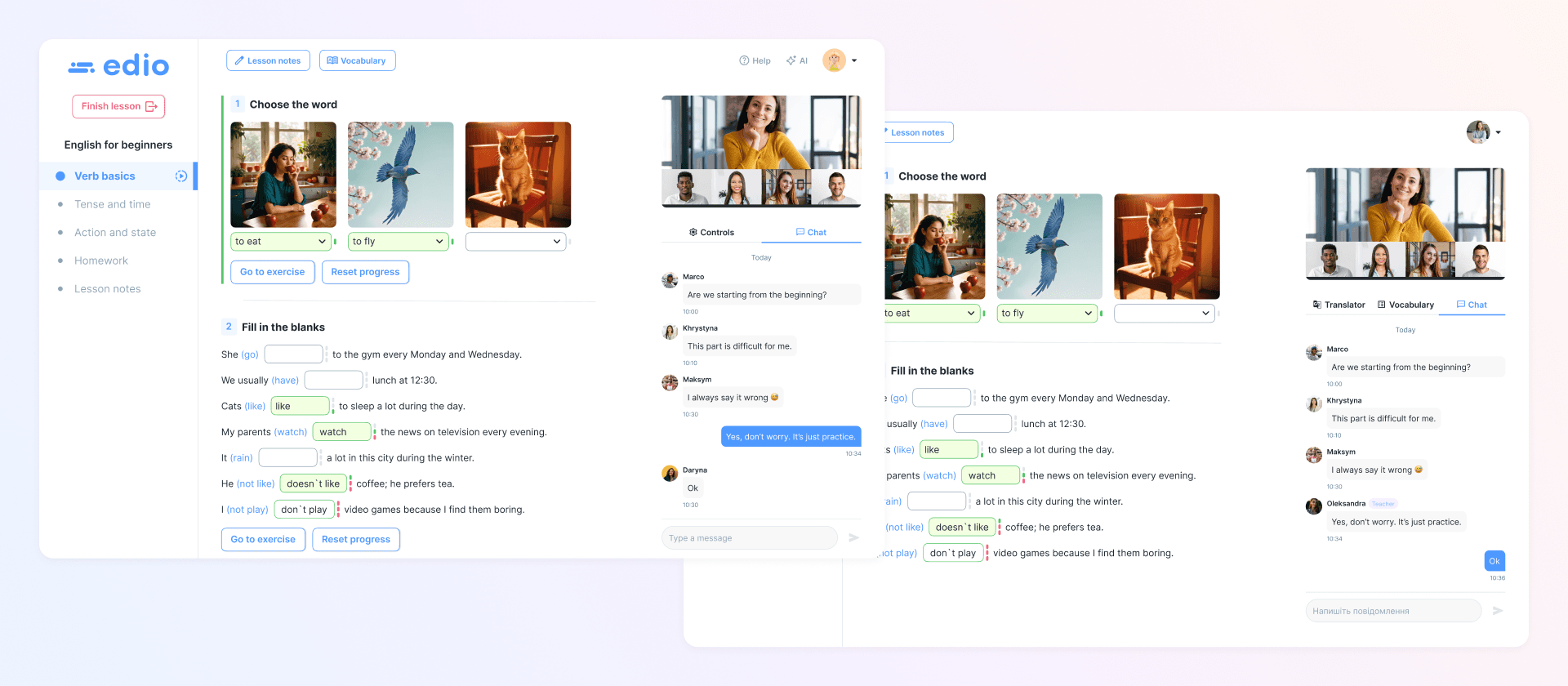
Go to Online lessons, find your class, and click Enter to open the virtual classroom. Then click the green Start the lesson button — this activates real-time sync between you and your students.
During the lesson:
To select or change the lesson, click Change lesson — a panel will open with edio Library and My Library where you can choose the materials for today's class
Navigate through lesson sections using the left sidebar. Click Pin chapter to keep a specific section visible for students
To direct a student to a specific exercise, click Go to exercise — the student's screen will automatically scroll to that exercise
See every student's answers in real time using the Controls panel on the right
Use Chat (right panel) to message students during the lesson without interrupting the flow
Use the vocabulary tool to instantly send words to students
When the lesson ends, click End lesson. A window opens where you mark attendance, give each student a star rating, select achievements (Good Speaking, Great Progress, Grammar Master, Vocabulary Voyager), and add an optional comment. Students are prompted to rate the lesson from their side.
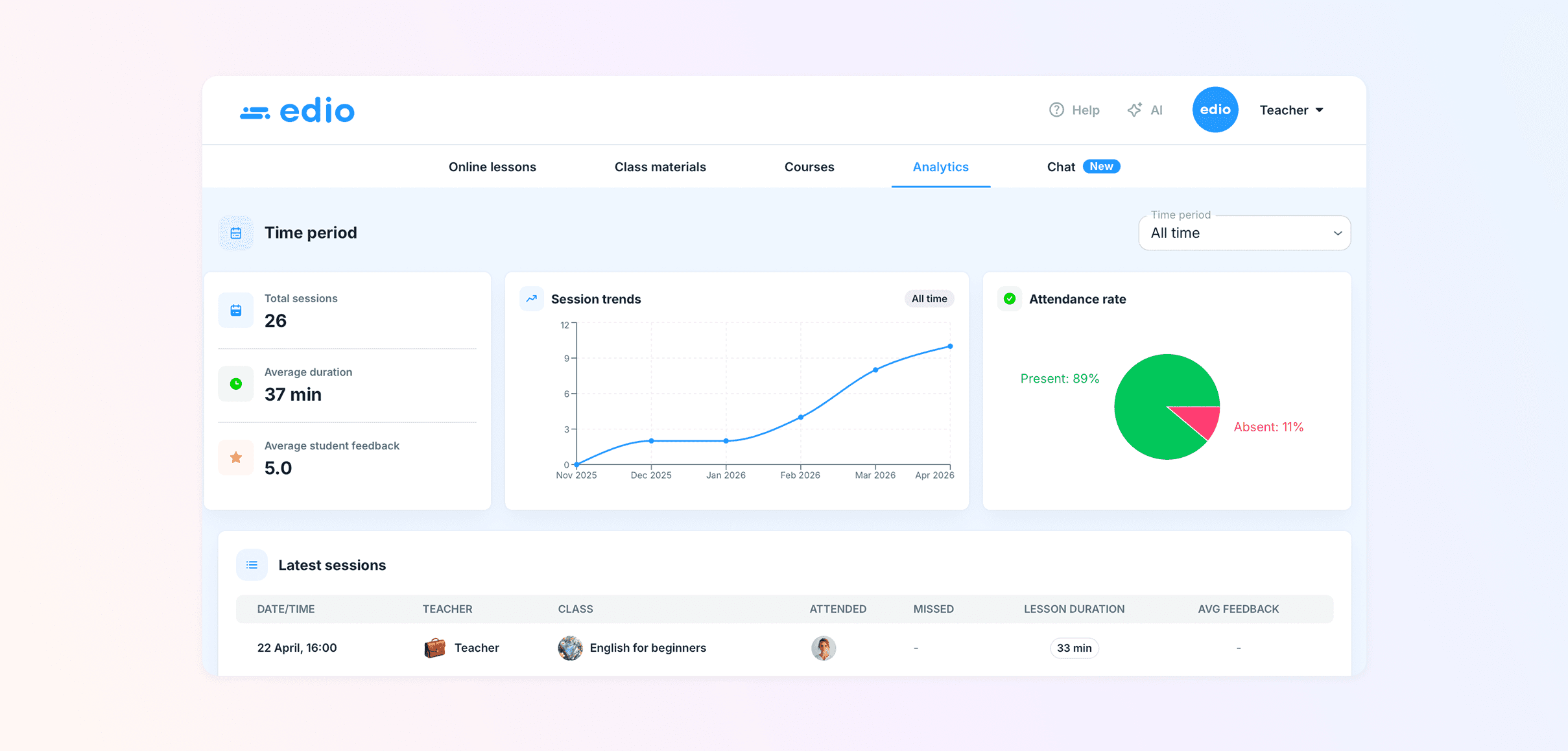
All of this — attendance, ratings, feedback, and session data — is saved automatically to Analytics.
Step 6: Track Student Progress Without Extra Work
One of the most time-consuming parts of running a language school is keeping track of what's happening across multiple students and classes. In edio, this happens automatically after every lesson.
Open the Analytics tab and you'll see:
Attendance rate across all classes
Session trends over time
Average student feedback scores
Full lesson history with details for every session
Click on any student to see their individual profile: total lessons attended, missed classes, average assessment score, achievements earned, and the full history of teacher comments and student feedback.
For school owners managing multiple teachers, you can also view per-teacher analytics — total teaching time, number of students taught, and average feedback — all from a single screen.
No spreadsheets. No manual tracking. Every lesson adds a new data point automatically.
Step 7: Make It Look Like Your School (White Label)
When your students log in, they can see your brand — not edio's. With edio's white-label solution, the platform runs under your own logo and domain, with all system emails sent under your school's name.
This matters more than it might seem. A branded platform signals professionalism. It builds trust with new students. And it removes the awkward moment where a student asks "what is edio?" instead of focusing on your school.
White label includes:
Your logo displayed across the entire platform
Your custom domain (e.g. learn.yourschool.com)
Branded emails — invitations, password resets, and notifications under your school name
An announcement banner — a message visible to all students when they log in, useful for promoting new courses or sharing updates
White label is available as an add-on at €150/month or €1,000/year. To get started, contact the edio team and we'll set everything up for you.
Frequently Asked Questions
Do I need any technical skills to set up an online language school with edio?
No. edio is built for teachers and school owners, not developers. Setting up your school, creating classes, and building lessons requires no coding or technical knowledge. Most schools are up and running within a day.
Can I use edio if I teach a language other than English?
Yes. edio supports 17 languages. The ready-made lesson library currently covers English (A1–C1), but the lesson builder works for any language. You can create fully interactive lessons in Spanish, French, German, Polish, Ukrainian, and more.
How many students can I have during the free trial?
During the free trial, you can add up to 5 students to virtual classes and run real lessons with them at no cost. This is enough to test the platform with your actual students before choosing a plan.
Do my students need to install anything?
No. Students access edio through their browser — no app installation required. They receive an invitation email, click the link, and they're in.
Can I track prepaid lesson packages?
Yes. edio has a built-in balance system that tracks prepaid lessons per student. When a lesson starts, one lesson is automatically deducted from each student's balance. You can top up balances manually and students can see their own balance and transaction history at any time.
What video call tool do you use for lessons?
edio's virtual classroom handles the interactive part of the lesson — exercises, real-time sync, chat, and analytics. For audio and video, you add your own Zoom or Google Meet link to the class.
Ready to Launch Your Online Language School?
Setting up an online language school used to mean stitching together separate tools for video calls, lesson materials, student tracking, and communication. With edio, all of it lives in one place — and your first lesson can happen today.
Start your free trial and set up your school in minutes. Your first 5 students are on us.
Already have an account? Follow the steps above and you'll be ready for your first real lesson before the end of the day.