Student certificates, brand colors and homework from live lessons
Here's what's new in edio since our October update. Schools can now send students certificates and show their own colors on the platform. Teachers can assign homework straight from a live lesson, turn any text into audio, and pick a style for AI pictures. The edio library has grown, too, and it's now one click away in every live lesson.
In this update:
- Send certificates to your students
- Your school's colors across the platform
- Pick a style for AI pictures
- Assign homework from a live lesson
- Text to speech: turn any text into a listening task
- The edio library: ready-to-teach lessons
- Also new
Send certificates to your students
Upload your certificate design once, and edio fills in each student's name and email and emails them the PDF. You don't need to edit the file or make certificates one by one.
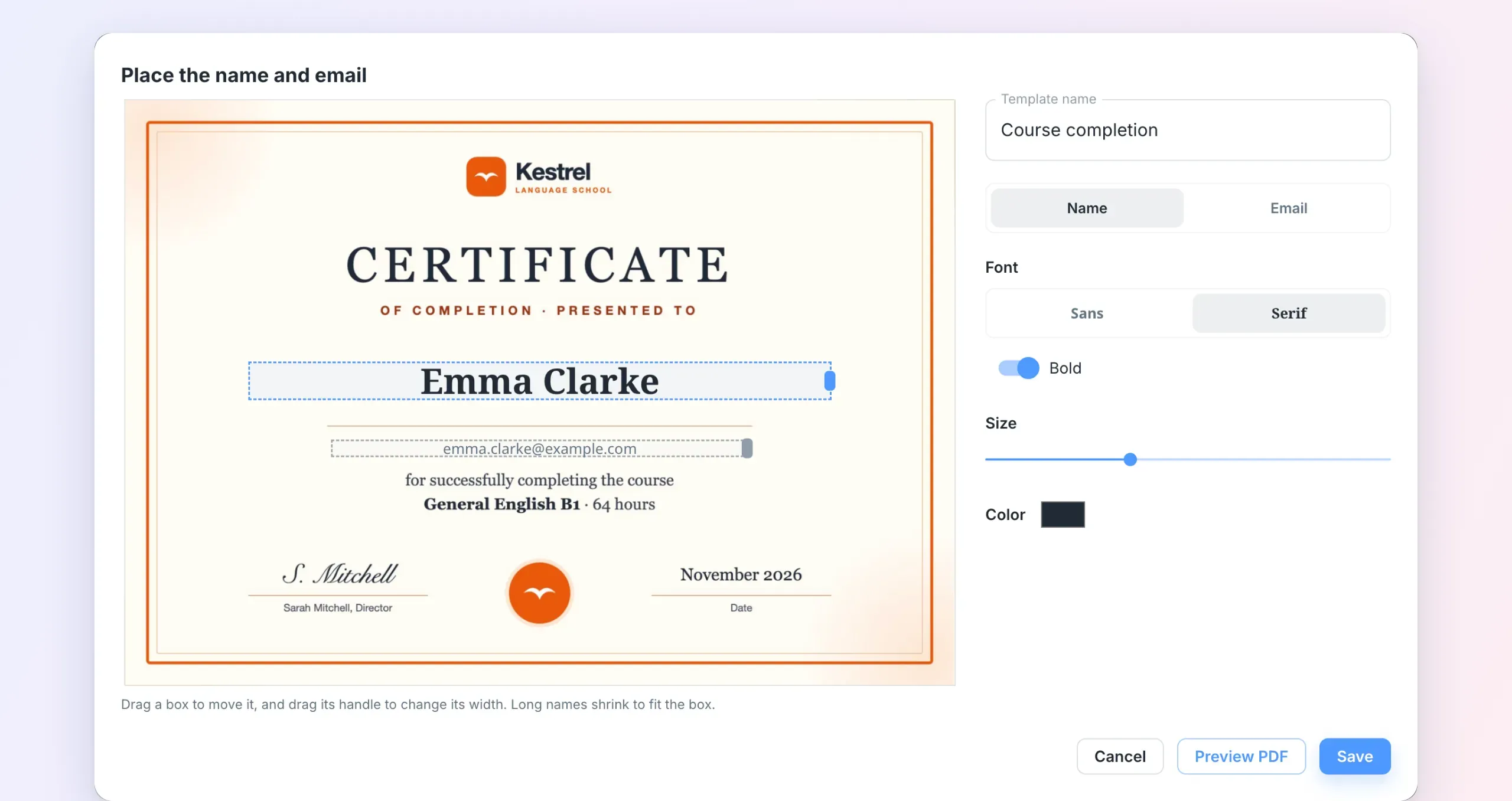
- Open School settings → Certificates and click Upload template. A PDF, PNG or JPG up to 10 MB works. For a PDF, edio uses the first page.
- Click Edit and drag the Name and Email boxes to where they belong on your design. Choose a font, size and color, then click Preview PDF to check the result.
- To send one, open Virtual classes → Students, click the three dots next to a student and choose Send certificate.
Every certificate you send is listed under Sent certificates, with the date, the template and who sent it, so you can resend one in a click. School owners and admins manage the templates, and a school can keep up to 20 of them, for example one per course or level. The step-by-step guide is in the help center: How to send certificates to your students.
Your school's colors across the platform
With white label, edio already shows your logo, tab icon and domain instead of ours. Now it shows your colors, too. Open School settings → White label and set two colors.
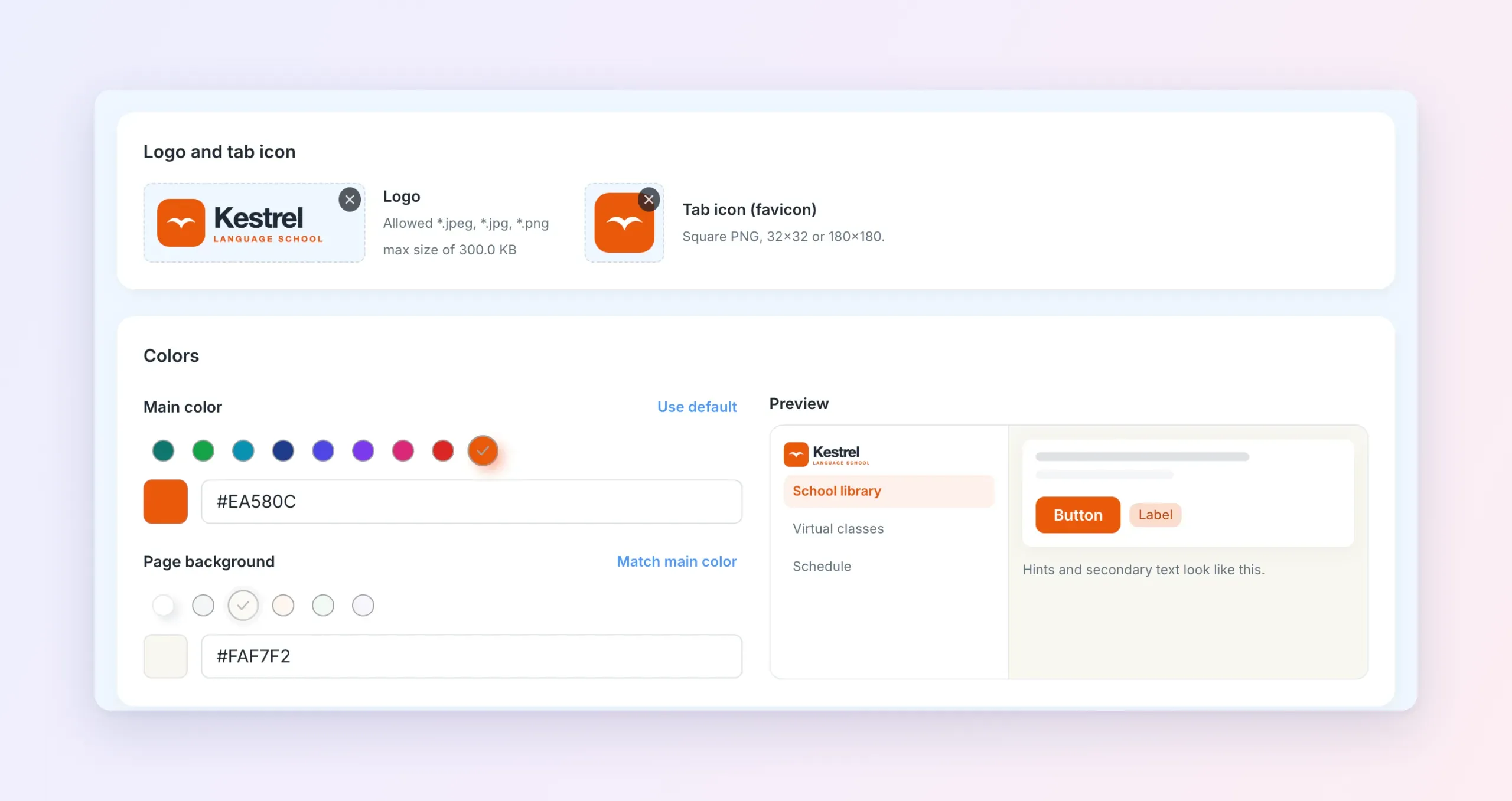
- Main color: buttons, links and highlights. Pick one of the swatches or enter your brand's own hex code.
- Page background: the color behind the pages. Choose a light shade, or let edio match it to your main color.
The preview beside the colors shows the result before you save. If a color would make text hard to read, for example a main color too light for white button text, edio tells you and asks for a darker one. Once you save, your teachers and students see your colors across the platform. Click Use default to go back to edio's blue.
White label is an add-on. You can read what it includes in the help center: White label: your school's own branded platform.
Pick a style for AI pictures
In October we added styles for AI lesson covers. Now every picture you generate gets the same choice: Photo, 3D isometric, Minimalist, Line drawing, Watercolor or Cartoon. Here is one description in four of them:
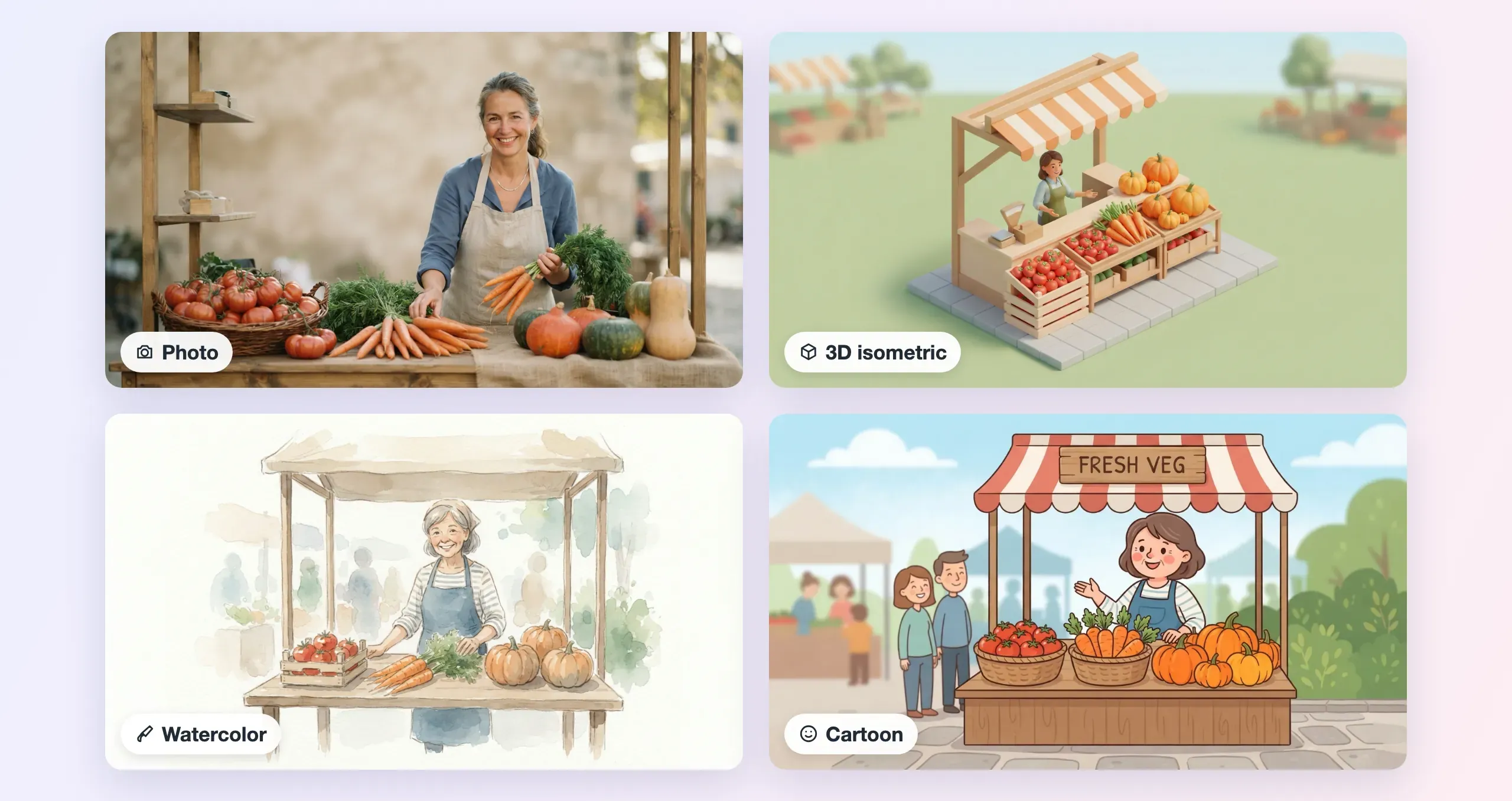
To add a picture to a lesson, click Add an exercise → Image / GIF → Generate with AI. Describe the picture, pick a style and click Generate (10 credits). edio remembers the style you used last, so a whole lesson can keep one look.
Assign homework from a live lesson
You can now set homework for the whole class without leaving the lesson you're teaching.
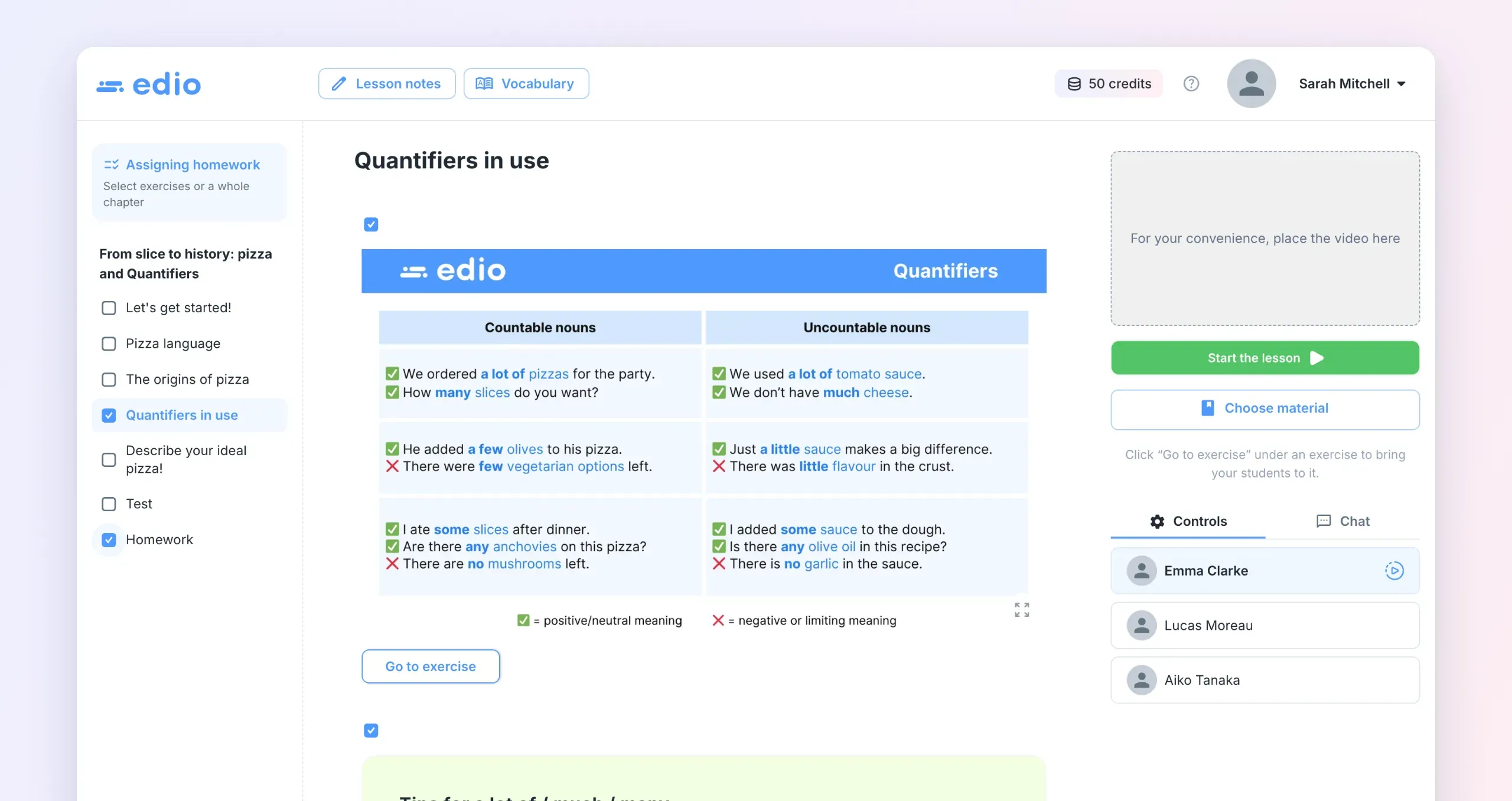
- In the live lesson, click Assign homework in the right panel.
- Tick single exercises, or a whole chapter in the left menu.
- Click Assign homework in the bar at the bottom. Changed your mind? Click Undo.
Assigned exercises get a Homework label. To add or remove a single exercise later, open its three-dot menu and choose Assign as homework or Remove from homework. Each lesson's homework needs at least one exercise that checks itself, so you can see who has done it.
Students find everything on their Homework page: one row per lesson, with its status (To do, Awaiting review, Redo required or Completed). When they open a lesson, they see only the exercises you assigned, in lesson order. Answers that need your review come to you as before, see How to review student homework.
Text to speech: turn any text into a listening task
Need a listening task on exactly your topic? Click Add an exercise → Text to speech and type or paste a text of up to 1,200 characters, which is about a minute and a half of audio. Or switch to Generate with AI: describe what it should say, pick the level, and AI writes the text for you (1 credit). You can edit it before anything is voiced.
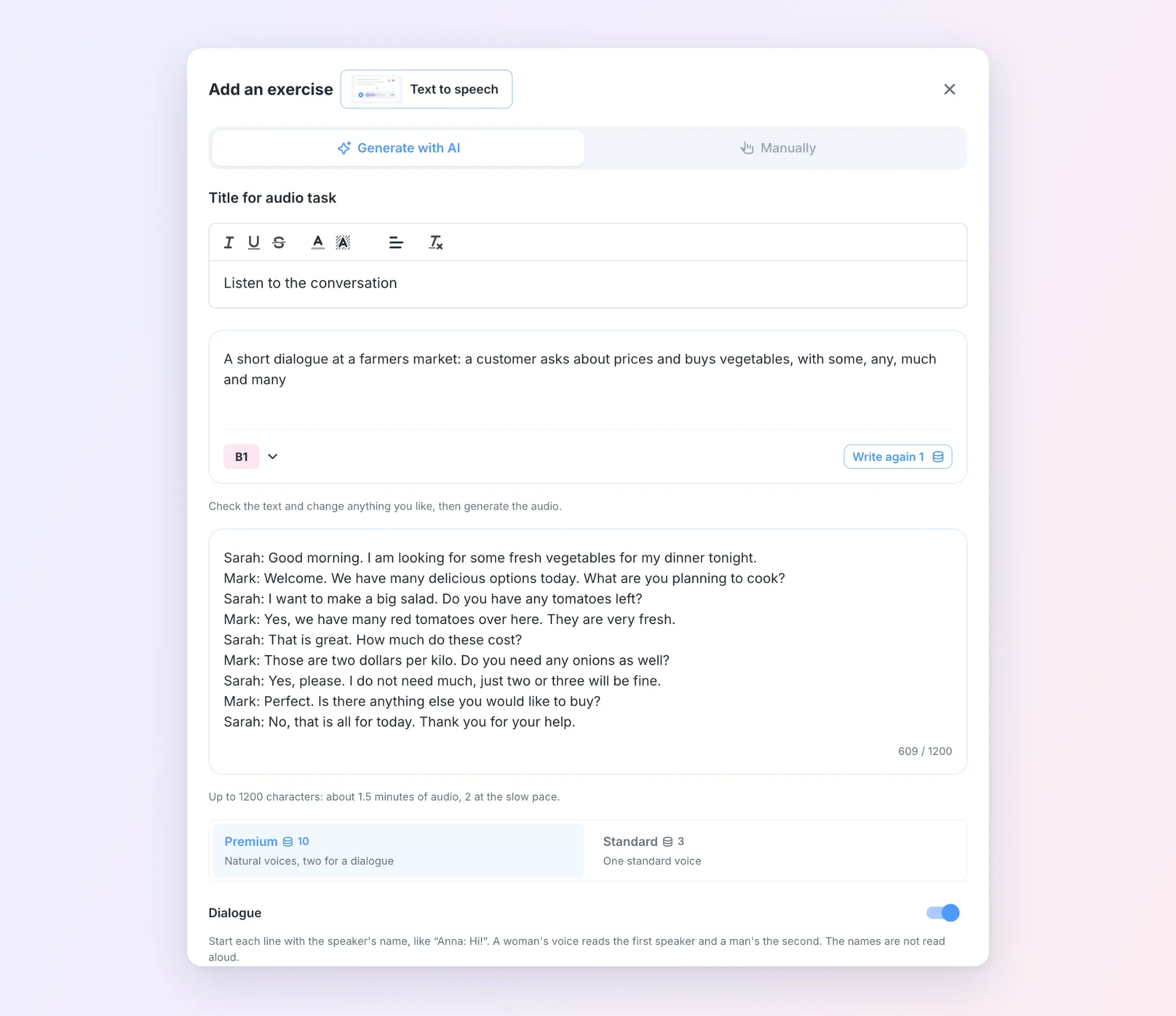
Then choose the voice:
- Premium: natural voices, and two of them for a dialogue (10 credits).
- Standard: one standard voice (3 credits).
For a dialogue, start each line with the speaker's name, like "Anna: Hi!". With Premium voices, the first speaker gets a woman's voice and the second a man's, and the names aren't read aloud. Keep Slow pace for learners on for lower levels. The result is a normal audio exercise, so you can add questions under it. How credits work: How AI credits work.
The edio library: ready-to-teach lessons
Open edio library in the menu to find ready-made lessons in English and Polish, from A1 to C1. Each one is a complete interactive lesson you can teach as it is.
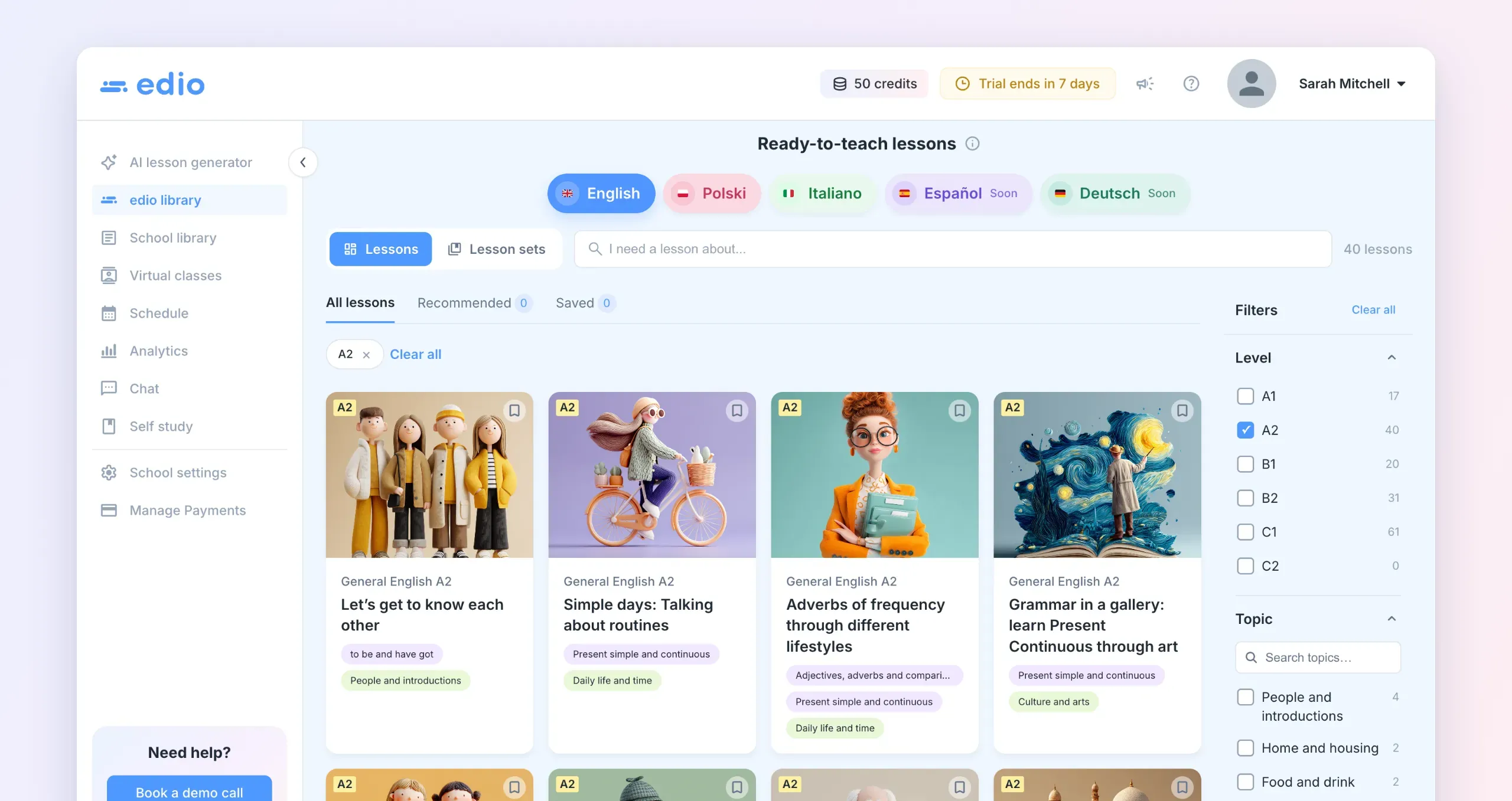
- Find a lesson fast: search for a topic, or filter by level, grammar and topic.
- Lessons or lesson sets: take a single lesson, or a set that works as a step-by-step program.
- Recommended and Saved: Recommended shows lessons the edio team picks. Save the ones you like with the bookmark, and they wait for you in Saved.
- In your live lessons: in a virtual class, click Choose material and open the edio library tab. You get the same cards, filters and saved lessons, so you can pick a lesson and start teaching.
- Open during the free trial: every library lesson is now available while you try edio, not just the first few in each course.
More about what's inside: What's in the edio library.
Also new
- Play the games yourself: in a live lesson, you can now answer Chat, Anagram, Unjumble and Memory game exercises too, for example to show the class how a game works.
- Faster audio: the audio player has two new speeds, Fast (1.25×) and Very fast (1.5×), next to the slower ones.
- More room in a lesson: collapse the panel on the right to give the exercises the full width.
All of these updates are live in edio now. Send your first certificate, set your school's colors or assign homework in your next class.
No account yet? Start your 7-day free trial, no credit card needed.
Related posts
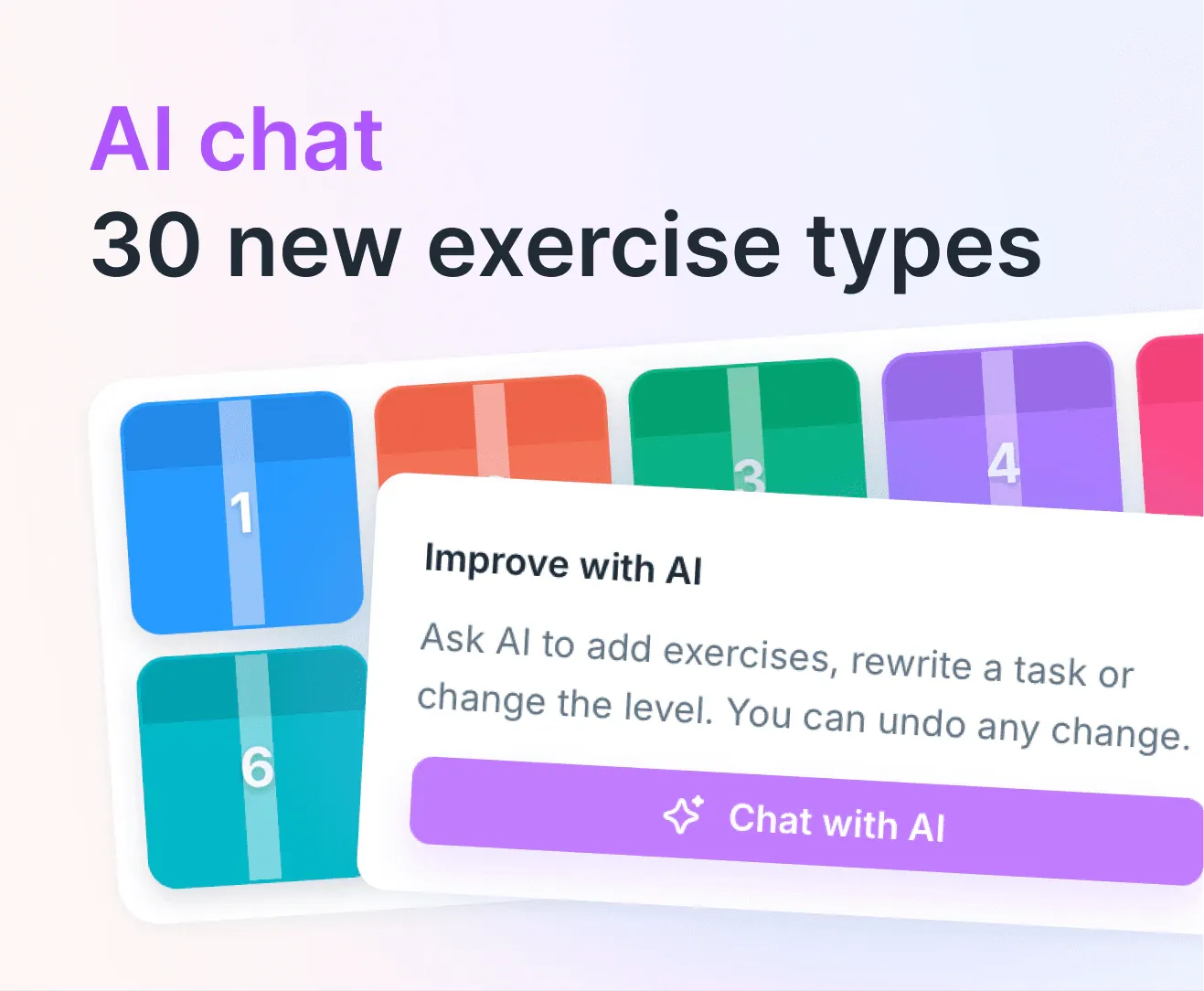
AI chat and 30 new exercise types
Edit lessons with AI chat, choose cover styles and natural voices, and try 30 new exercise types: real-life documents, games and more.
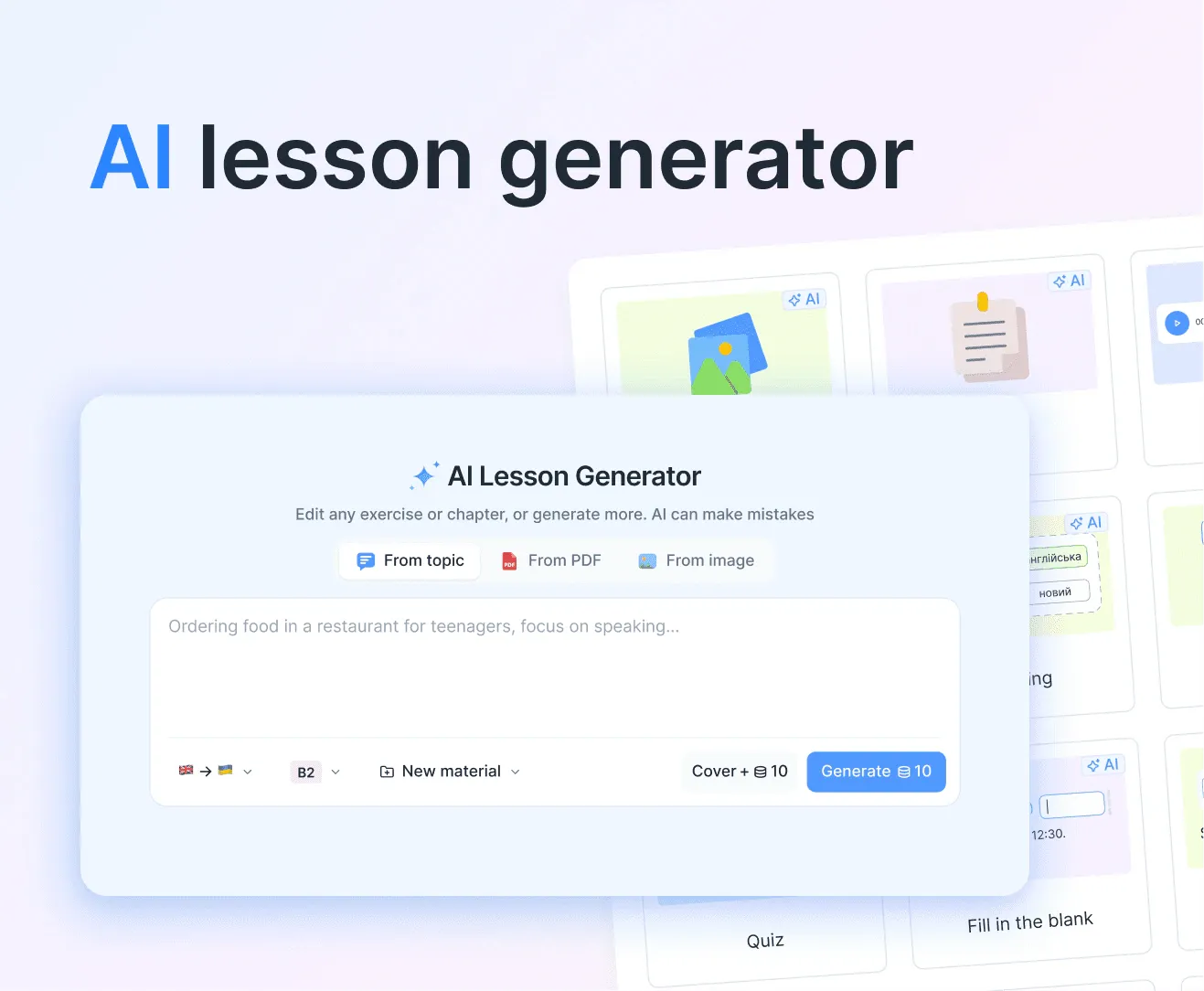
AI lesson generator: build a complete lesson from a topic, PDF, or image
Type a topic, upload a PDF, or drop in an image, and edio.ai builds a full interactive lesson with exercises in about a minute. You pick the language and the level, and edit anything before class.
New features: vocabulary training, lesson balance & improved lesson search
Better learning for students and easier management for schools with the latest edio update.