How to add students to your school
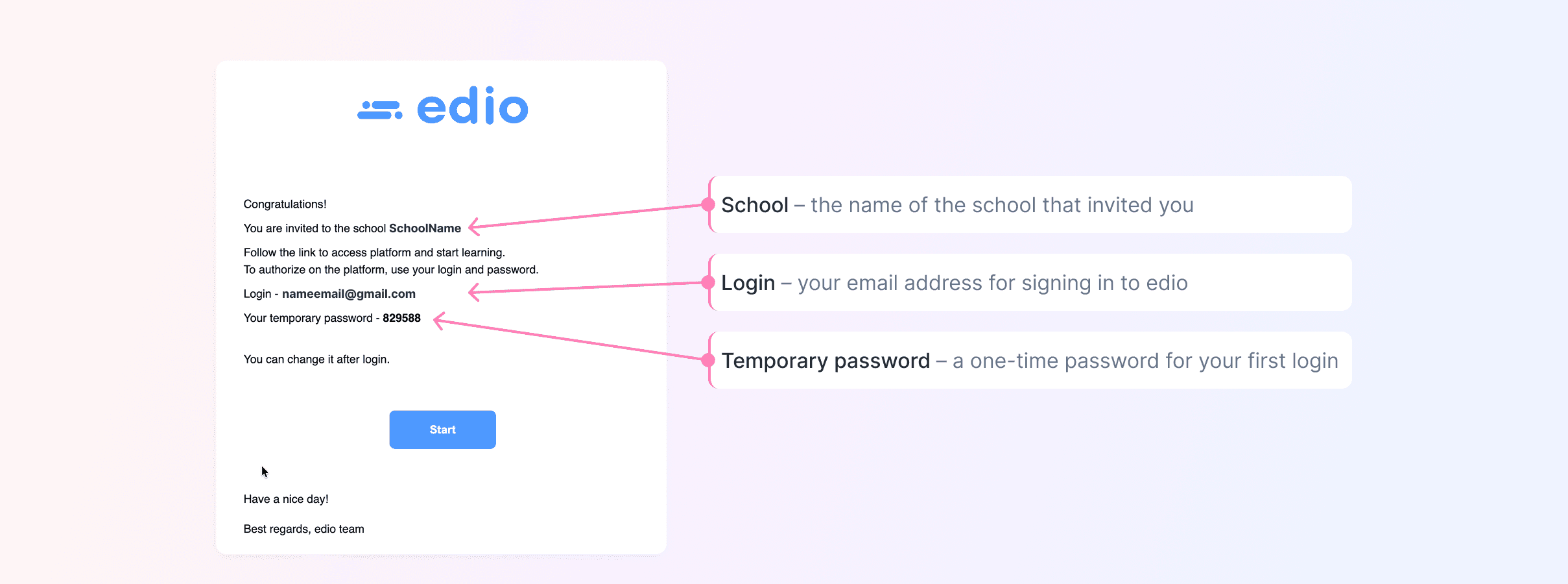
Add your first student in edio.ai. They receive an email invitation with a login and a temporary password for the first sign-in.
You need at least one student in your school before you can create a virtual class.
Add a student
Go to Online lessons and open the Students tab.
Click + Add a student.
Fill in the form: the student's email address, name, and native language.
Click Add.
During your free trial, you can add up to 5 students.
What your student receives
The student automatically receives an invitation email with the name of your school, their login, and a temporary password for the first sign-in. Students cannot sign up for your school on their own, so the invitation is the only way in.
After signing in, the student sees your school and the classes they belong to in their learning space.
What's next
Create a virtual class and add your students to it.