How to run an online lesson
How to start an online lesson in edio, keep students in sync, use the vocabulary tool and chat, track progress live, and end the lesson properly.
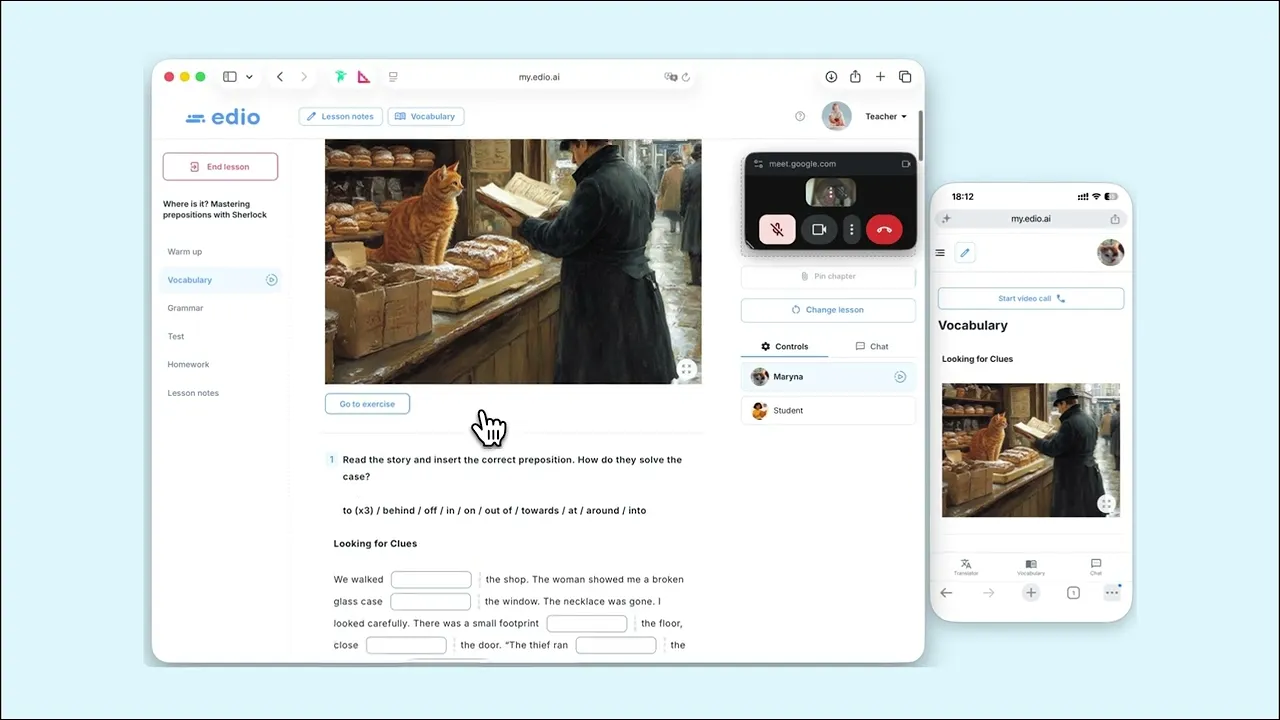
To run an online lesson in edio, open your virtual class, click Enter, and press Start the lesson — this activates real-time sync, so every student sees the same material as you. During the lesson you can pin chapters, move students to a specific exercise, look up words, chat, and watch each student's answers as they type. When you're done, End lesson takes you straight to attendance and assessments.
Start the lesson
Go to Online lessons, find your class, and click Enter. Inside the classroom you'll see three controls:
Start the lesson — launches the selected lesson with all its chapters and exercises, and turns on real-time sync with your students.
Start video call — opens the meeting link (Zoom, Google Meet, or another) you added when creating the class. edio doesn't replace your video tool; it's the shared lesson space alongside it. The call window can sit in the video area, so everything stays on one screen.
Students — the list of everyone added to this class.
Keep students on the same page
Lessons are organized into chapters — Warm up, Vocabulary, Grammar, Speaking, Test, Homework, Lesson notes.
Select a chapter in the left sidebar, then click Pin chapter — all students are taken to it automatically.
Click Go to exercise to move everyone to a specific task. The chosen part is highlighted in green on your side.
Reset progress clears answers for all students so an exercise can be repeated.
Change lesson switches to another material from this class without leaving the session.
See what every student is doing
As students complete exercises, their answers are highlighted in real time on your screen. You can see who's ahead and who's stuck without asking, and step in only where it's needed.
The Students panel on the right shows everyone connected. Click a name to focus on that student's activity or give them direct feedback.
In interactive exercises, you also see built-in hints with the correct answers — students don't. This makes it easy to confirm an answer or explain an option without opening the material separately.
Send words with the vocabulary tool
Click Vocabulary at the top of the lesson to open a built-in dictionary. Search any word, and send it to your students in one click. They'll see it in their interface and can save it to their personal vocabulary for later practice — so a word that came up mid-conversation doesn't get lost.
Chat with your class
The chat is built into the lesson itself — open the Chat tab in the right-hand panel, next to Controls. You can message students without leaving the material or interrupting the flow of the class. Students have the same tab on their side, alongside Translator and Vocabulary, and they can write first — so a question doesn't have to wait for a pause. Your messages are marked with a Teacher badge, so everyone can see who's speaking.
Outside the lesson, the Chat tab in the top navigation holds all conversations: Classes (the group chat of a virtual class), Students and Teachers (private conversations). The school owner and admin can read and write in class chats too.
Chat history is tied to the class and to people, not to a single lesson — nothing is cleared when the lesson ends, so students can ask questions afterwards and everyone can scroll back to what was said before.
End the lesson
Click End lesson and confirm. A window opens where you can, for each student:
mark them Present or absent
give an assessment from 1 to 5 stars
select achievements — Good Speaking, Great Progress, Grammar Master, Vocabulary Voyager
add an optional comment
Click End lesson to save. Students are then prompted to rate the lesson from their side and leave an optional comment.
Everything is saved automatically to Analytics — attendance, assessments, achievements, comments, and both sides' feedback. If you need to correct something afterwards, you can edit the session details from the lesson record in Analytics.