How to get started as a student in edio
A student's guide to getting started in edio: accept your invitation, sign in, set up your profile, and find your classes, courses, vocabulary, and progress.
To start using edio as a student, open the invitation email from your school, sign in with the login and temporary password inside it, then complete your profile — and you'll land in your learning space with your classes and courses.
How you get access
You join edio through an invitation from your school — there's no separate sign-up. When your school adds you to a course or virtual class, you receive an invitation email with your school's name, your login (the email address you gave the school), and a temporary password for your first sign-in. Click the button in the email to go straight to the edio login page.
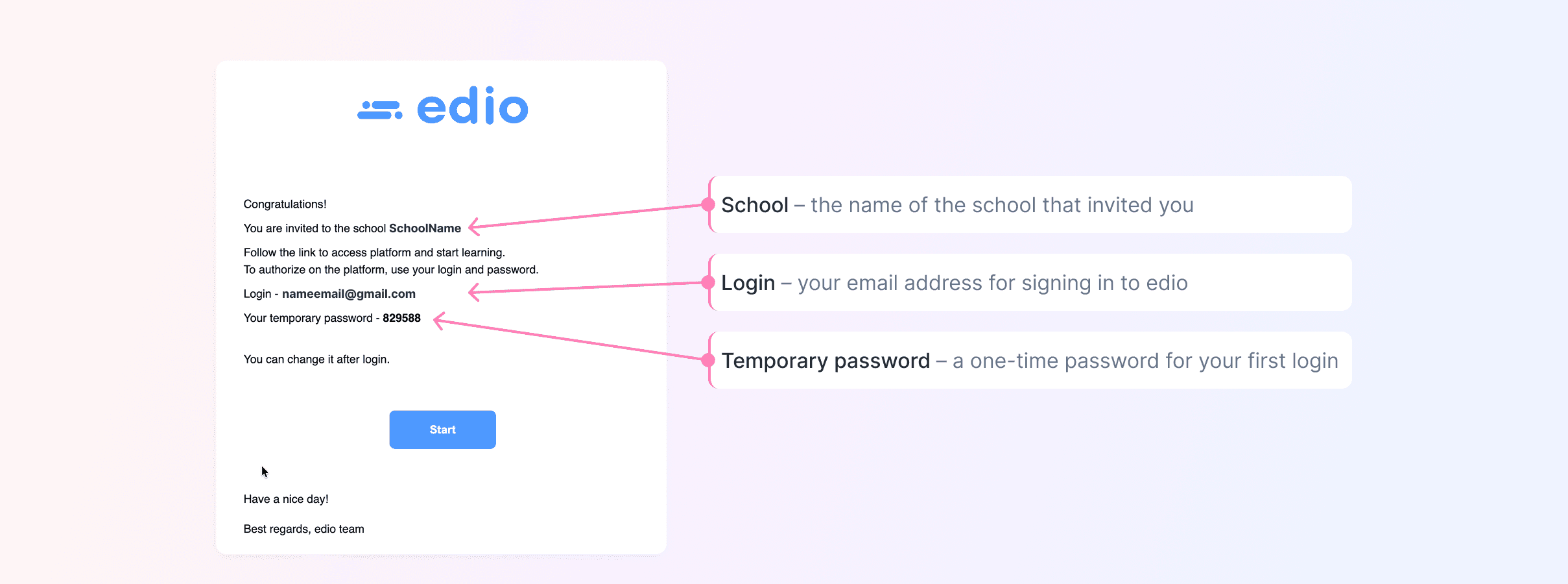
How to sign in for the first time
On the login page, enter the email address from your invitation and your temporary password, then click Sign in. If you ever lose your password, use the Forgot your password? link below the password field to reset it.
How to set up your profile
After your first sign-in, edio asks you to complete your profile. Enter your full name and choose your preferred language for the platform, and optionally upload a photo (JPEG or PNG). You can also turn on an email alert for unread chat messages. Click Save to confirm — your details apply right away. You can change your password anytime later from your profile menu.
Where to find your classes and courses
Your learning space is your home screen. My online classes lists the virtual classes your teacher runs live: click Open class to join, or Class materials to see the lessons and resources shared with you. My courses lists self-paced courses you work through on your own — click Open to continue. If your school uses a lesson balance, you'll also see how many lessons you have left, with a history of how they were used.
How to build and practice vocabulary
Open Vocabulary to see every word you've saved. While completing a lesson, click the plus icon next to any word to add it to your personal dictionary. When you want to review, choose a practice mode — flashcards, audio quiz, typing the word, or matching pairs — to reinforce what you've learned.
How to track your progress
Open Analytics to see your learning history: how many lessons you've attended, your average assessment, the achievements you've earned, and a breakdown of each lesson with your teacher's feedback.
How to message your teacher
Open Chat to message your teacher or class directly. You can start the conversation yourself, and your full history stays available so you can look back at anything that was shared.