How to run your first online lesson
Enter your virtual class in edio.ai, pick a material, and run the lesson from start to finish.
Everything in a lesson happens inside the virtual class. Come in a few minutes early the first time, so you can look around before your students arrive.
Open the class
Go to Online lessons and click Enter on the class card. You can also open the class from the Schedule tab. There is no other way in.
You are now inside the virtual class, but the lesson has not started.
Pick a material
Click Choose material. There are two tabs:
My library holds your school's own materials.
edio library holds the ready-made materials from the platform.
Open a material, then choose a lesson inside it. Until you do, your students see a note asking them to wait.
You can do this before the lesson starts, which is why coming in early helps.
Start the video call
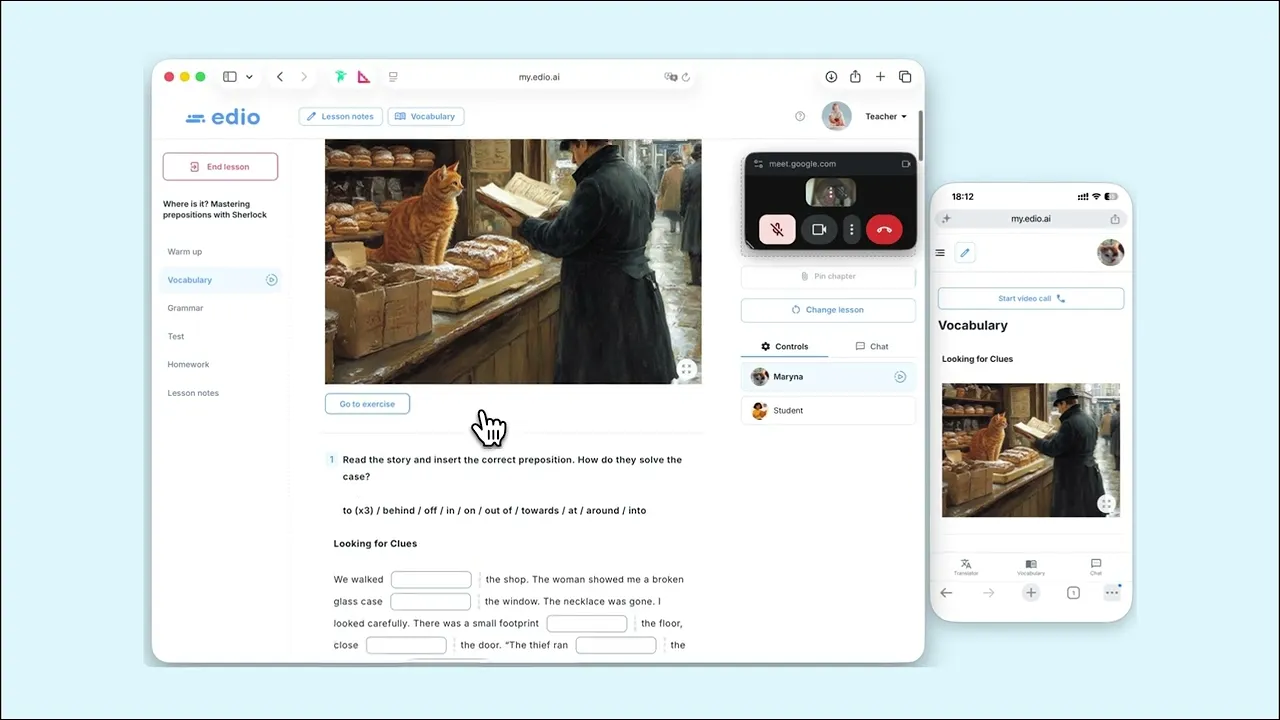
Click Start video call. The link your school set for this class opens in a separate window. Place that window where it does not cover the lesson.
The call is for talking only. You do not share your screen, because your students already see the lesson on their own devices.
Start the lesson
Click Start the lesson. If your school uses the balance system, you are asked to confirm that one lesson is counted for every student in the class.
Move your students through the lesson
The lesson is split into chapters, listed on the left. This is the part that catches people out on their first lesson:
Opening a chapter changes only your own screen. Your students stay where they are. To bring them with you, select the chapter and click Pin chapter.
Pinning also turns on the controls for that chapter. Go to exercise takes everyone to the exercise you are on, and Reset progress clears the answers so students can try again. You can watch answers as students type them.
End the lesson
Click End lesson. The End lesson and mark attendance form opens with a card for every student in the class:
Present is a checkbox. Clear it for anyone who did not attend.
Assessment is a rating from one to five stars.
Achievements are badges you can give for the lesson: Good Speaking, Great Progress, Grammar Master, and Vocabulary Voyager.
Comment is an optional note for that student.
Only attendance needs your attention. The rest is optional.
Click End lesson to finish. A lesson is only recorded in Analytics if you both started and ended it in edio.
What's next
That is the whole flow. From here you can assign homework, review what students submit, and look at their progress in Analytics.