How to generate a lesson with AI
How to generate a complete interactive lesson in edio.ai from a topic, a PDF, or an image, and what comes out.
The AI lesson generator builds a complete interactive lesson in about a minute. You start from a topic, a PDF, or an image, choose the languages and the level, and get a lesson with chapters, exercises, and homework already in place.
Open it from AI lesson generator in the left menu.
Choose where to start
From topic. Describe what the lesson is about. A sentence or two works better than a single word: the more you say about the situation, the vocabulary, or the grammar point, the closer the result lands.
If nothing comes to mind, the Ideas list under the field gives topics for the level you picked. Click one to drop it into the field. Ideas are shown in the language you are teaching.
From PDF. Upload a text you already use and pick a mode:
Transform (keep content) builds the lesson around the material in the file.
Inspire (fresh exercises) uses the file as a starting point and writes new tasks.
You can add extra instructions for the file in the field below.
From image. Upload a photo, a screenshot, or a page from a book.
With a PDF or an image, the result is not a copy of the file. edio builds a full lesson around it, so expect chapters and exercise types that were not in the original, including audio.
Set the languages and the level
Click the flags to open the language picker. Two choices, and they are different things:
Language to teach is the language of the lesson content, tasks, and exercises.
Students' language is used for translations and explanations, mostly in the vocabulary.
Next to the flags, pick the level from A1 to C1.
Choose where the lesson is saved
New material lets you pick an existing material to add the lesson to, or search for one by name.
Leave it as it is and edio creates a new material named after the lesson, using the generated cover as its image.
Add a cover
Add cover generates a cover image for the lesson. It costs 10 credits on top of the 10 for the lesson, so a lesson with a cover is 20.
Leave it unchecked to generate the lesson only.
Generate
Click Generate. A progress screen shows the chapters as they are built, and the lesson opens by itself when it is ready. A full multi-chapter lesson takes one to two minutes.
What you get
A complete lesson split into named chapters, with exercises inside each one. A typical lesson has:
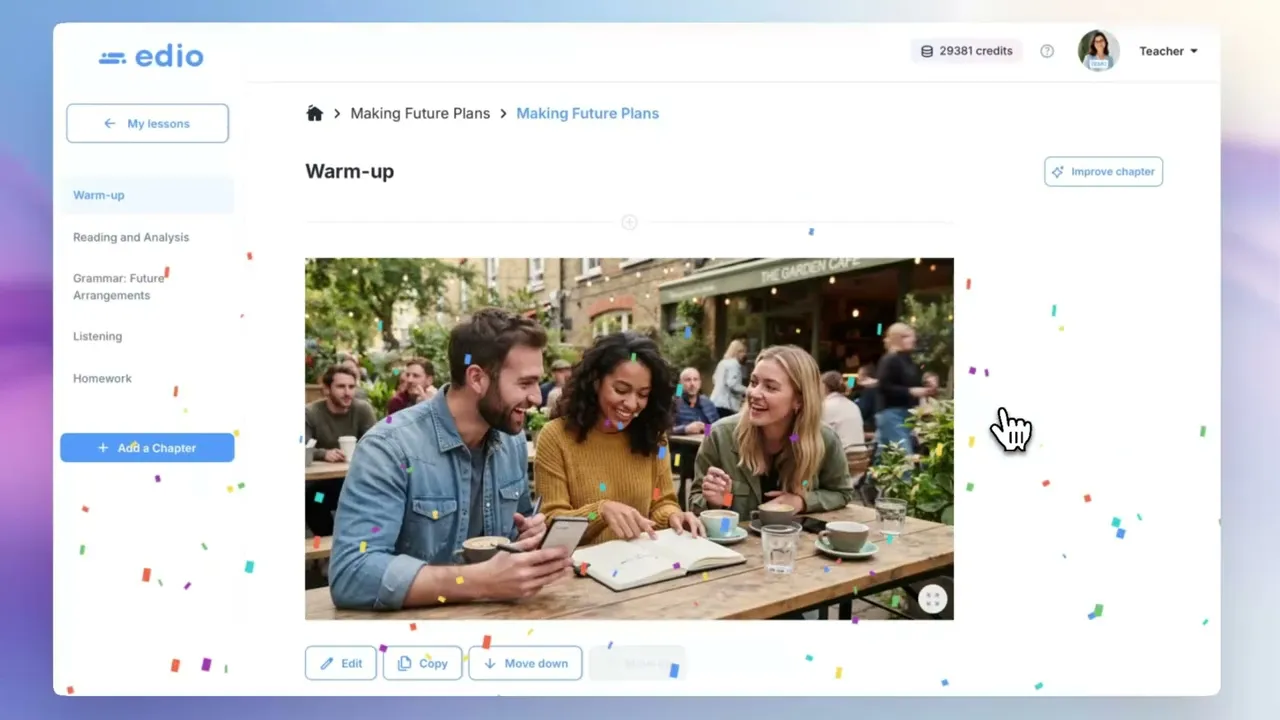
Warm-up — a cover image, discussion questions, the vocabulary list, and short exercises
Reading — a text with the vocabulary words highlighted, followed by exercises
Grammar — a note explaining the grammar point, then practice
Listening — an audio track with exercises, plus a transcript in a note that only teachers see
Homework — a writing task and an audio task, both reviewed by the teacher, plus interactive exercises
Some lessons also include a Speaking chapter.
Exercise types vary by chapter: quiz, true or false, word choice, fill in the blank, drag and drop, and matching.
Edit anything
The lesson opens in the normal editor, so nothing is locked. Each chapter has Improve chapter, and each exercise has Edit, Edit with AI, Copy, and buttons to move it up or down. Add a Chapter adds a new one.
You can also add exercise types the generator does not produce, by building them by hand.
Check your credits
Credits & history under the generator, or the credits counter in the header, opens a screen with your balance, how many generations you have left, and what has been spent this month. Every generation is listed with its topic, type, level, languages, teacher, and cost.
What's next
The lesson is now in your materials, ready to attach to a class. Adjust anything that does not fit your group, then teach it live or assign it as homework.