How to schedule online lessons
How to set up recurring or one-time lessons in edio.ai, see them in the schedule, and cancel or reschedule a single lesson.
A schedule tells edio when each class meets. Add it while creating a virtual class, or any time after that. Once a schedule exists, every lesson appears in Schedule in the left menu, where you can open the class, cancel a single lesson, or move it to another time.
Add a schedule
Three ways in, all opening the same form:
While creating a class. Step 2 of Create virtual class is Schedule, and it is optional.
From the class card. Classes without a schedule show + Add schedule in Online lessons.
From the class page. Click More actions on the class card, then open the Schedule tab.
Teachers can add a schedule to any class they are assigned to. Creating a virtual class is for school owners and admins.
Choose the lesson format
Recurring lesson is for classes that meet on the same days every week.
Pick a day and a time.
Click Add another day for each additional lesson in the week.
Set a Start date. This is required, and it is when the schedule begins.
Set an End date if the course finishes on a known date. Leave it empty for an open-ended class.
Click Save schedule.
One-time lesson is for a trial lesson or a single session. Pick a date and a time, and save. It appears under Planned one-time lessons. You can add several, and combine them with a recurring schedule in the same class.
See the week
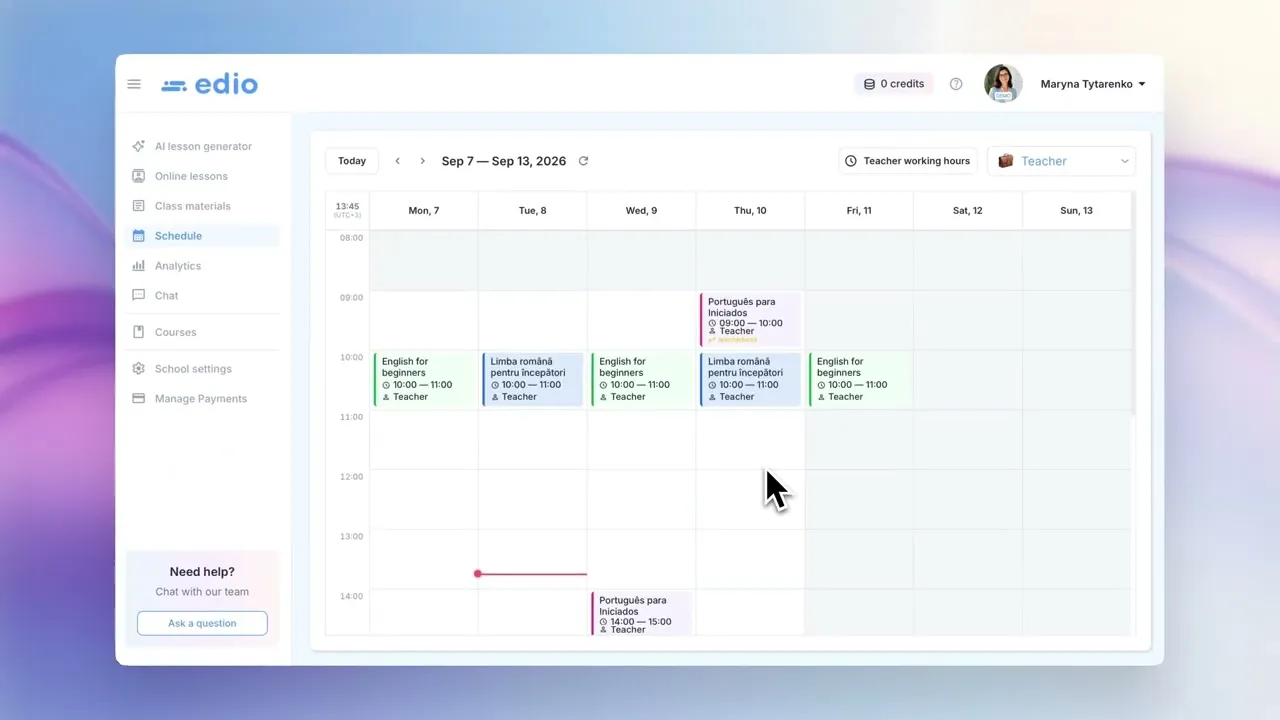
Schedule in the left menu shows the week. Use Today and the arrows to move between weeks.
A lesson sits in the cell where it starts. When two or more lessons start in the same slot, the cell shows how many there are instead. Click it to see the full list, and click any lesson in that list to open it.
What you see depends on your role. School owners and admins see every lesson in the school, with All teachers in the corner. Pick a single teacher there to see only their lessons. Teachers see their own lessons, with their working hours and a month view beside the calendar.
Open, cancel, or move a lesson
Click any lesson to open its card. It shows the date, the time, the teacher, and the students, with Open class to go straight into the virtual classroom. If the class has a call link, the card shows it with a copy button.
For a lesson that has not happened yet, two more options appear:
Cancel lesson. Add a reason and confirm. The lesson stays visible in the schedule, crossed out.
Reschedule lesson. Choose a new date, start time, and duration. edio shows you the new time before you save it. Once saved, the lesson moves and is marked as rescheduled.
For a lesson that has already happened, only Open class is available.
Set when you are available
Working hours define the times a teacher can be booked, and lessons cannot be scheduled outside them.
Set a day and a range, and add a second range for the same day if you teach in two blocks. Teachers edit their own hours from the Schedule screen. Owners and admins set hours for any teacher by selecting that teacher first.
Hours follow the timezone in your profile. Change it under your name in the top right if the times look wrong.
What students see
Students see the schedule of each class right on its card in My learning space, and all their lessons together under Schedule. Clicking a lesson opens the same card with Open class.
What's next
With the schedule in place, the class is ready to teach. Before the lesson, choose the material you will use, then open the class from the schedule when it is time.